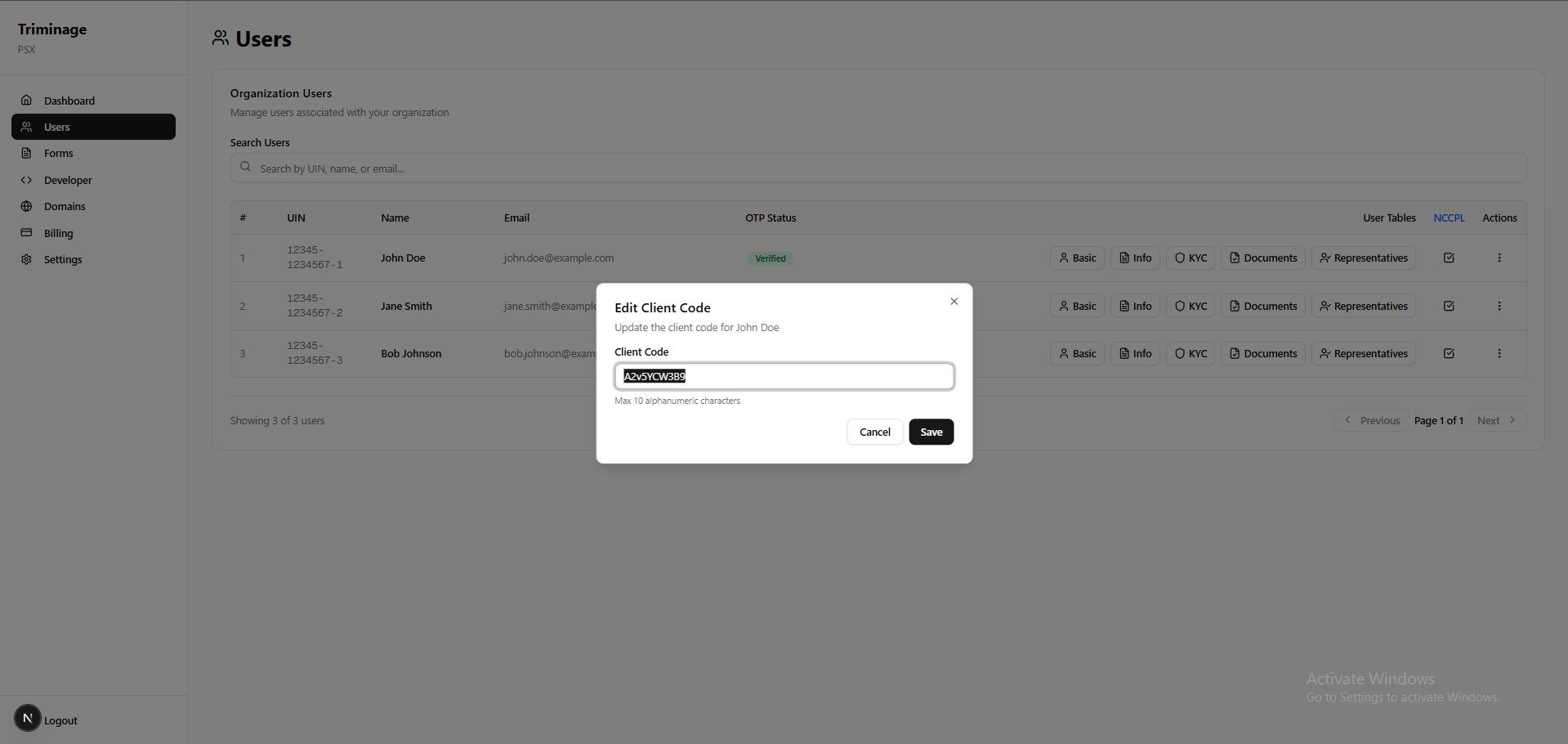
How to Add a Client Code to the User
Add client codes to users in your system to better organize and track client information.
Last updated: 2024
Prerequisites
- An active Triminage account
- Access to the Users section
- At least one user in your system
Step-by-Step Instructions
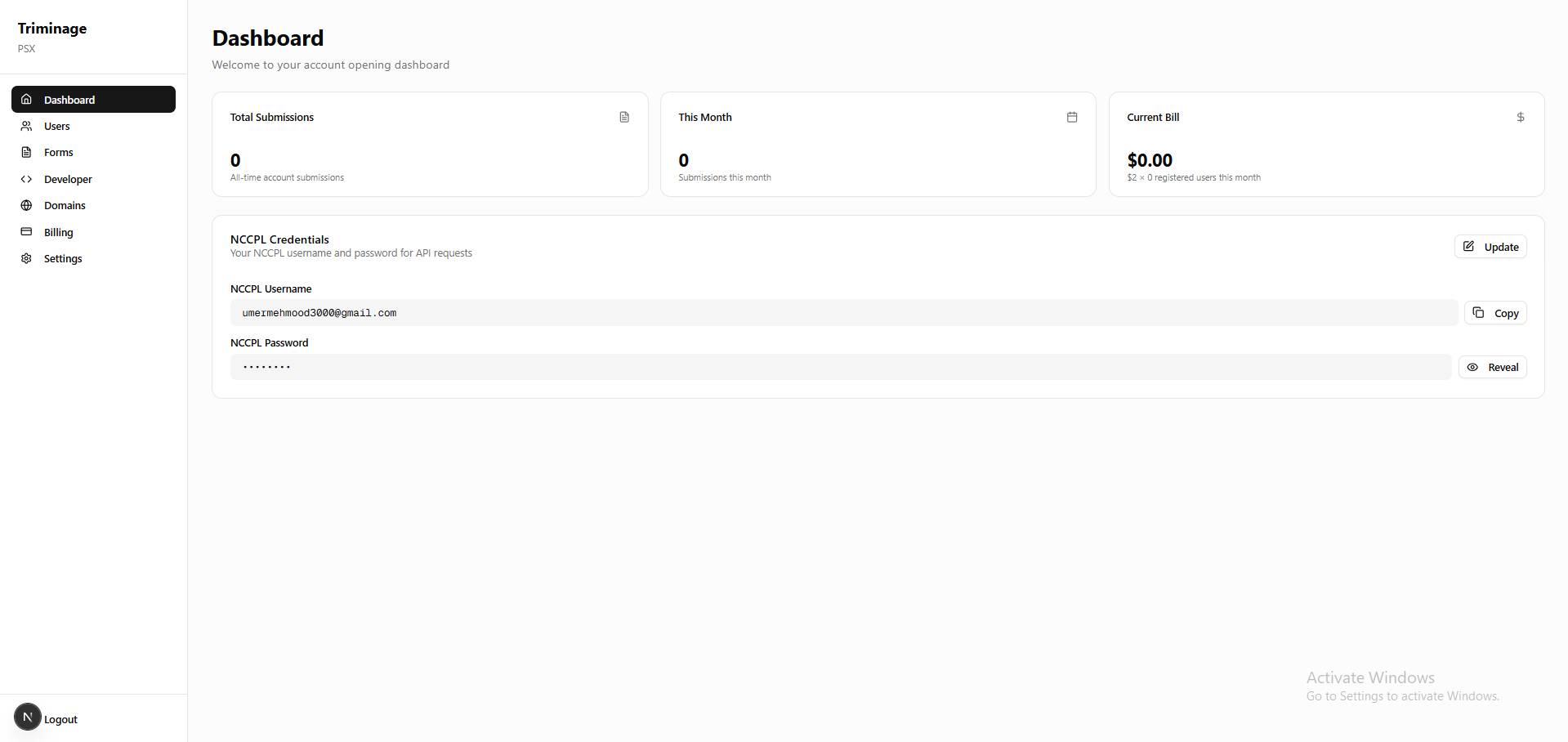
Navigate to Users Section
Log in to your dashboard and go to the "Users" section from the main navigation menu.
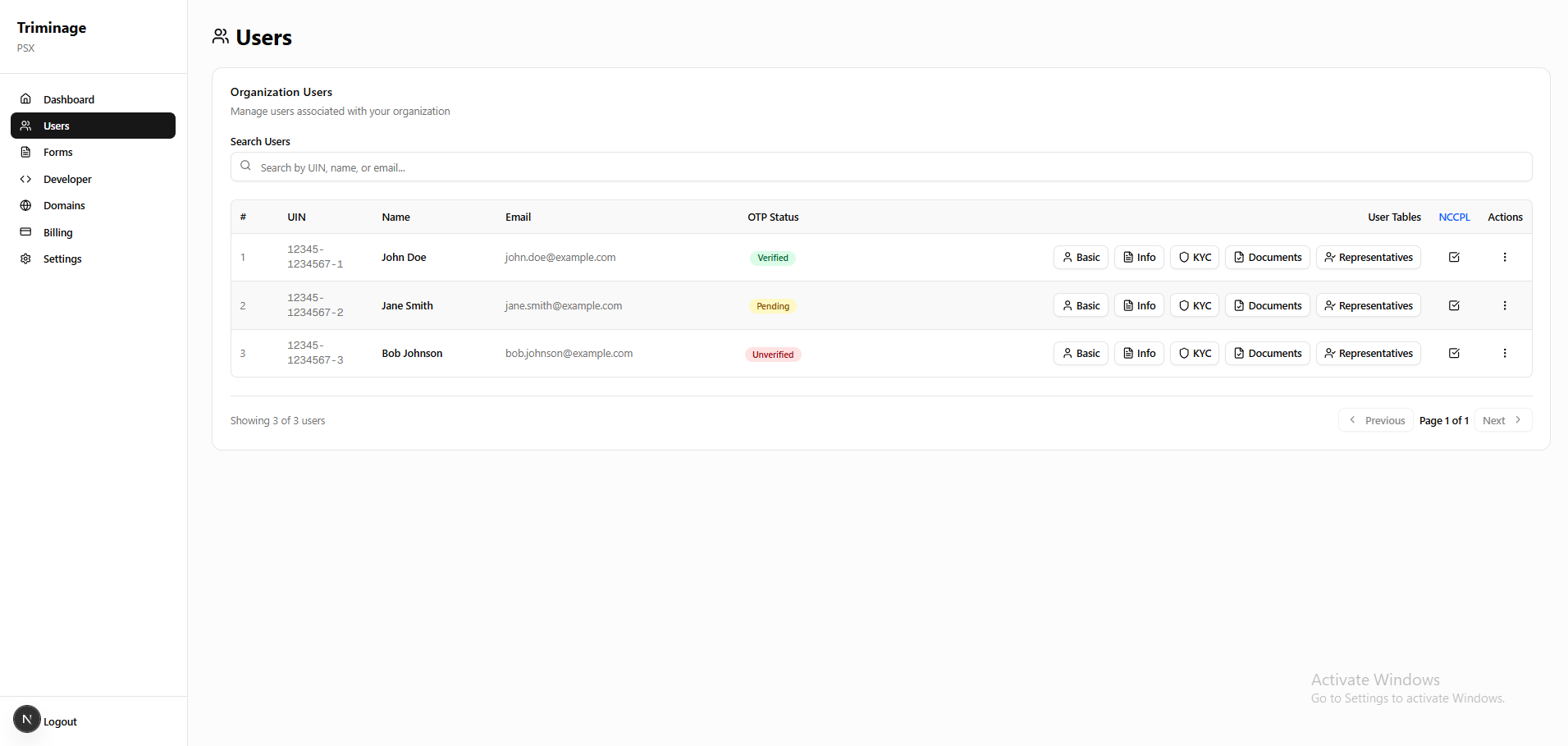
Select a User
Find and click on the user you want to add a client code to. You can use the search or filter options to locate specific users.
Open User Details
Click on the user's name or the "Edit" button to open their user details page.
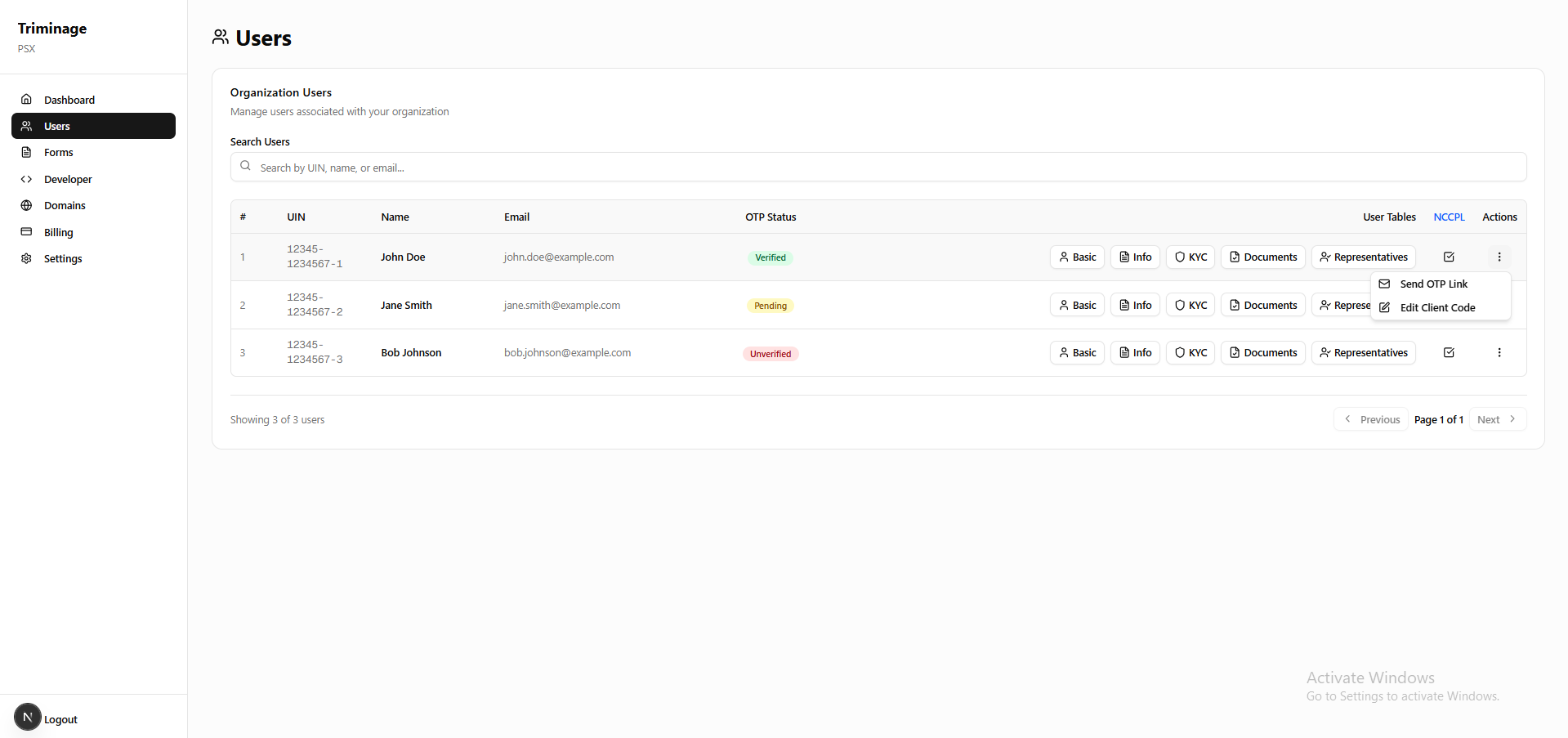
Locate Client Code Field
In the user details form, find the "Client Code" field. This may be in the main information section or under additional details.
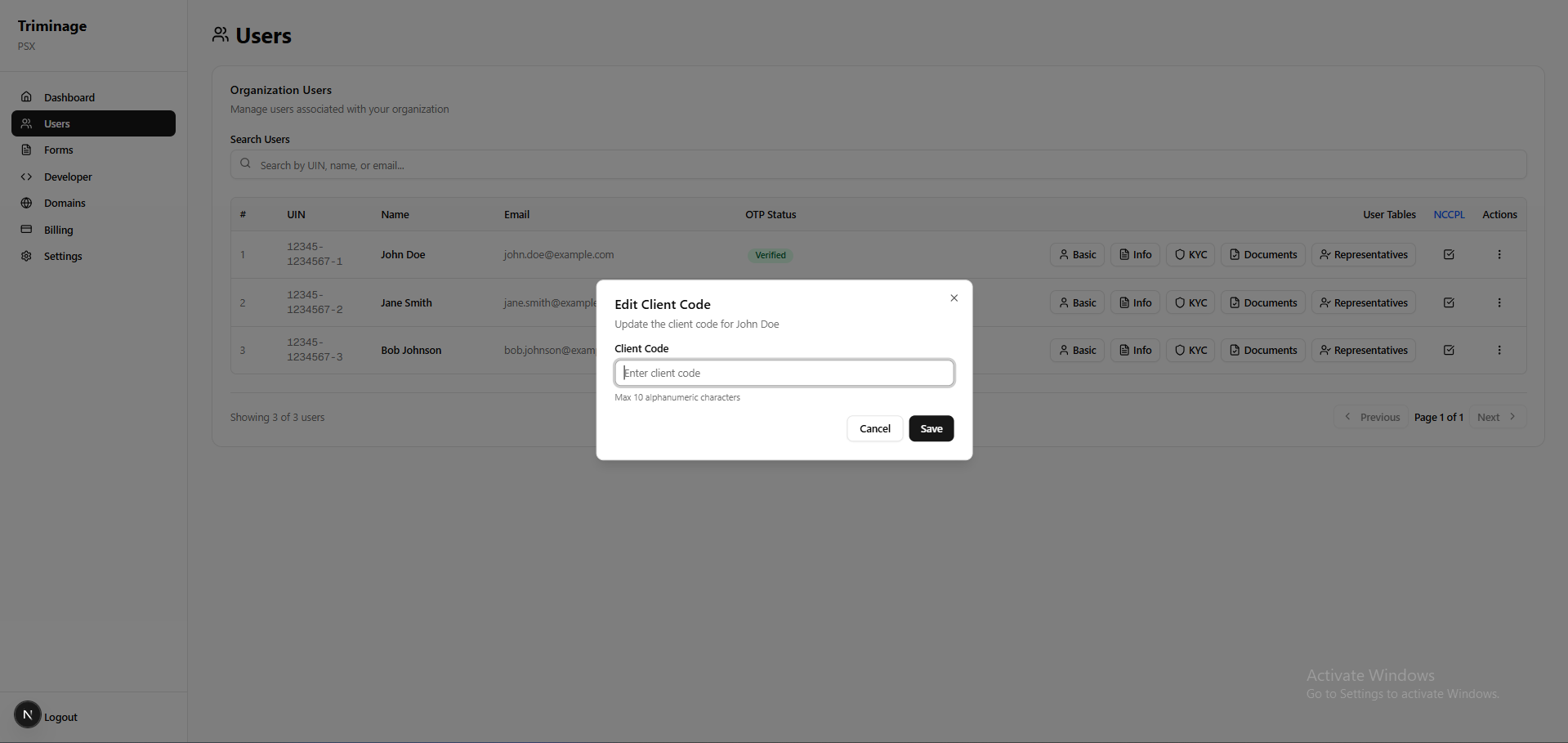
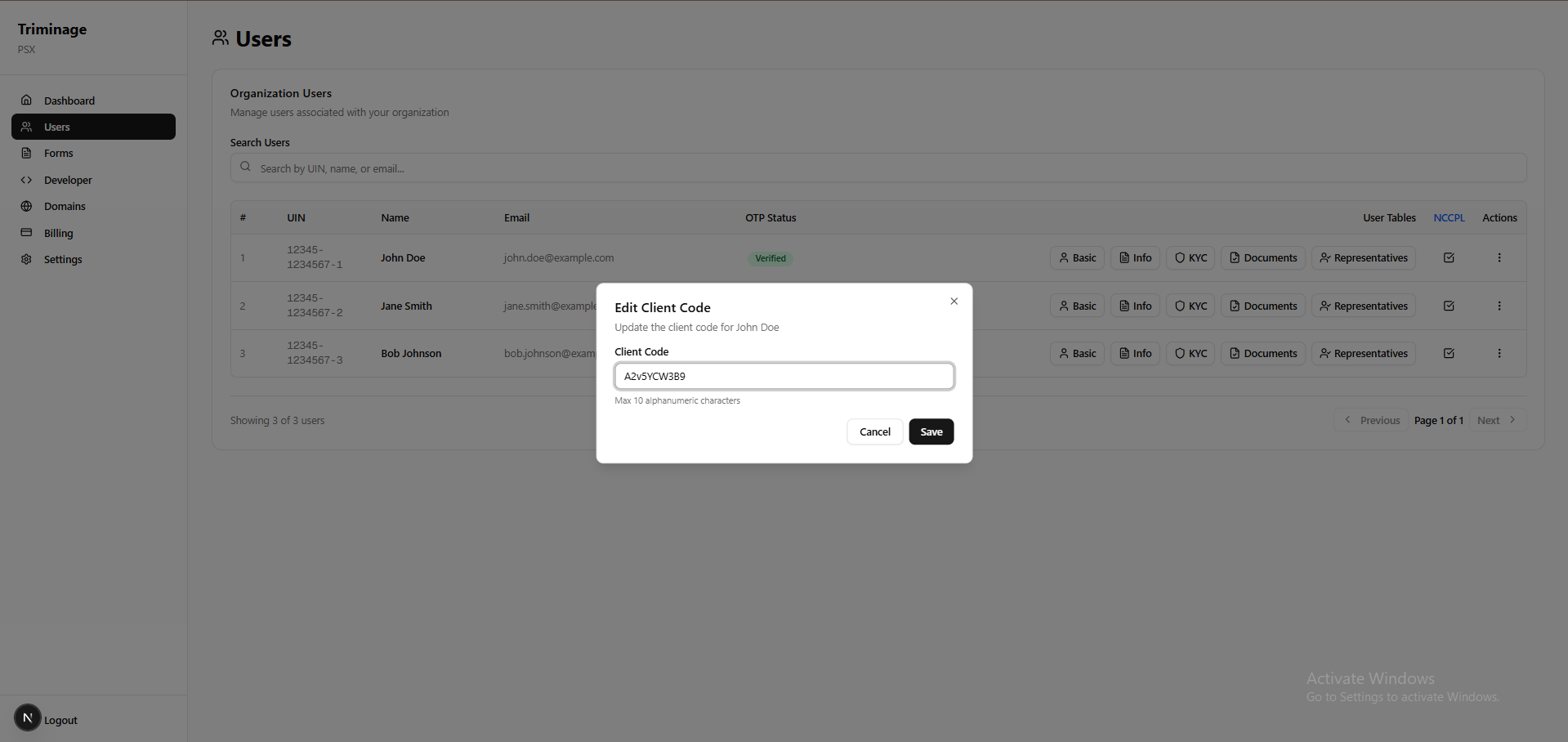
Enter Client Code
Enter the client code in the designated field. Client codes are typically alphanumeric identifiers used for internal tracking.
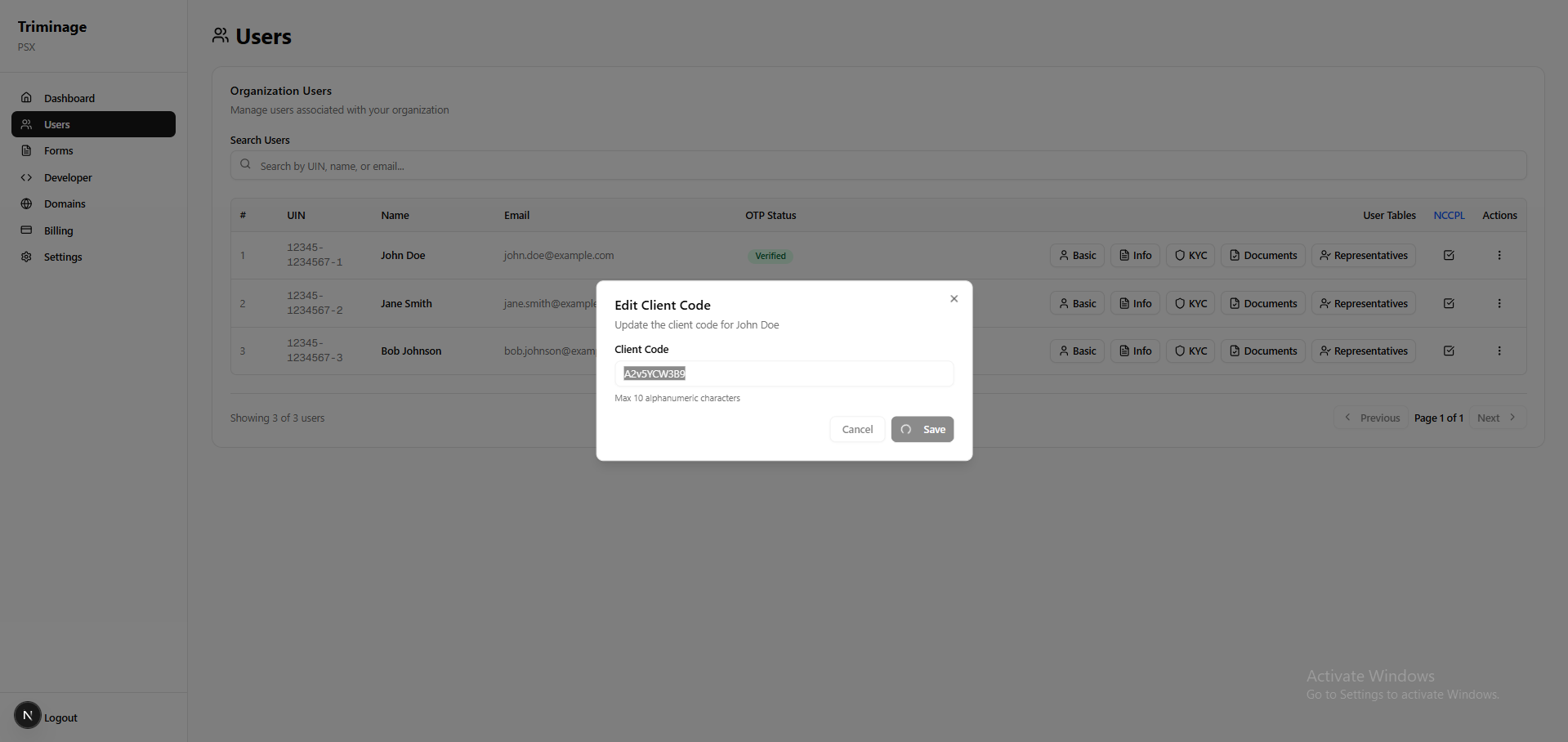
Save Changes
Click the "Save" or "Update" button to save the client code. You will see a confirmation message once the changes are saved successfully.
Verify Client Code
Return to the user list or user details page to verify that the client code has been successfully added and is displayed correctly.