How to Deactivate Your Form
Temporarily deactivate your account opening form to pause submissions or perform maintenance. You can reactivate it at any time.
Last updated: 2024
Prerequisites
- An active Triminage account
- At least one form created
- Access to form settings
Step-by-Step Instructions
Access Forms Section
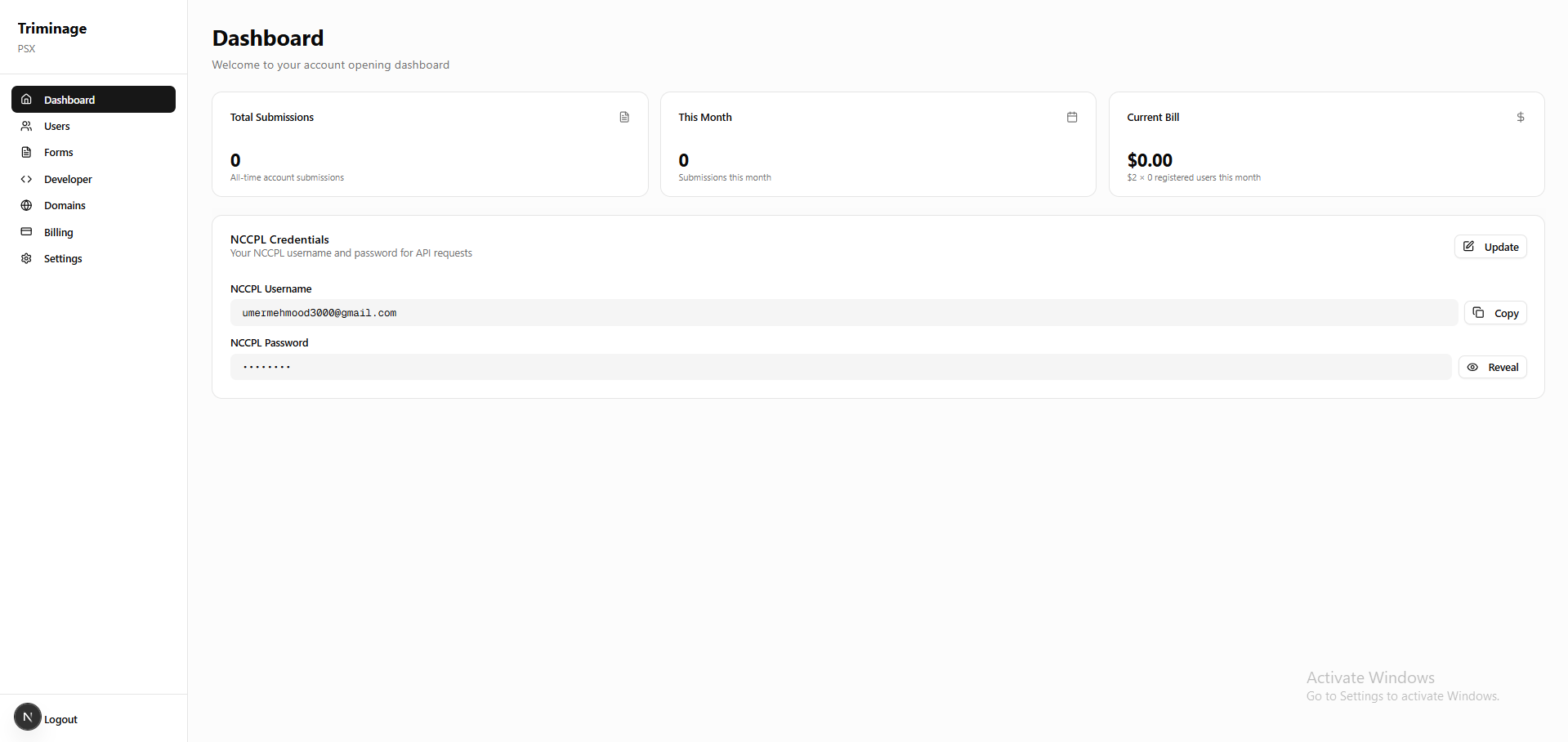
Log in to your dashboard and navigate to the "Forms" section from the main navigation menu.
Select Your Form and Locate Status Toggle
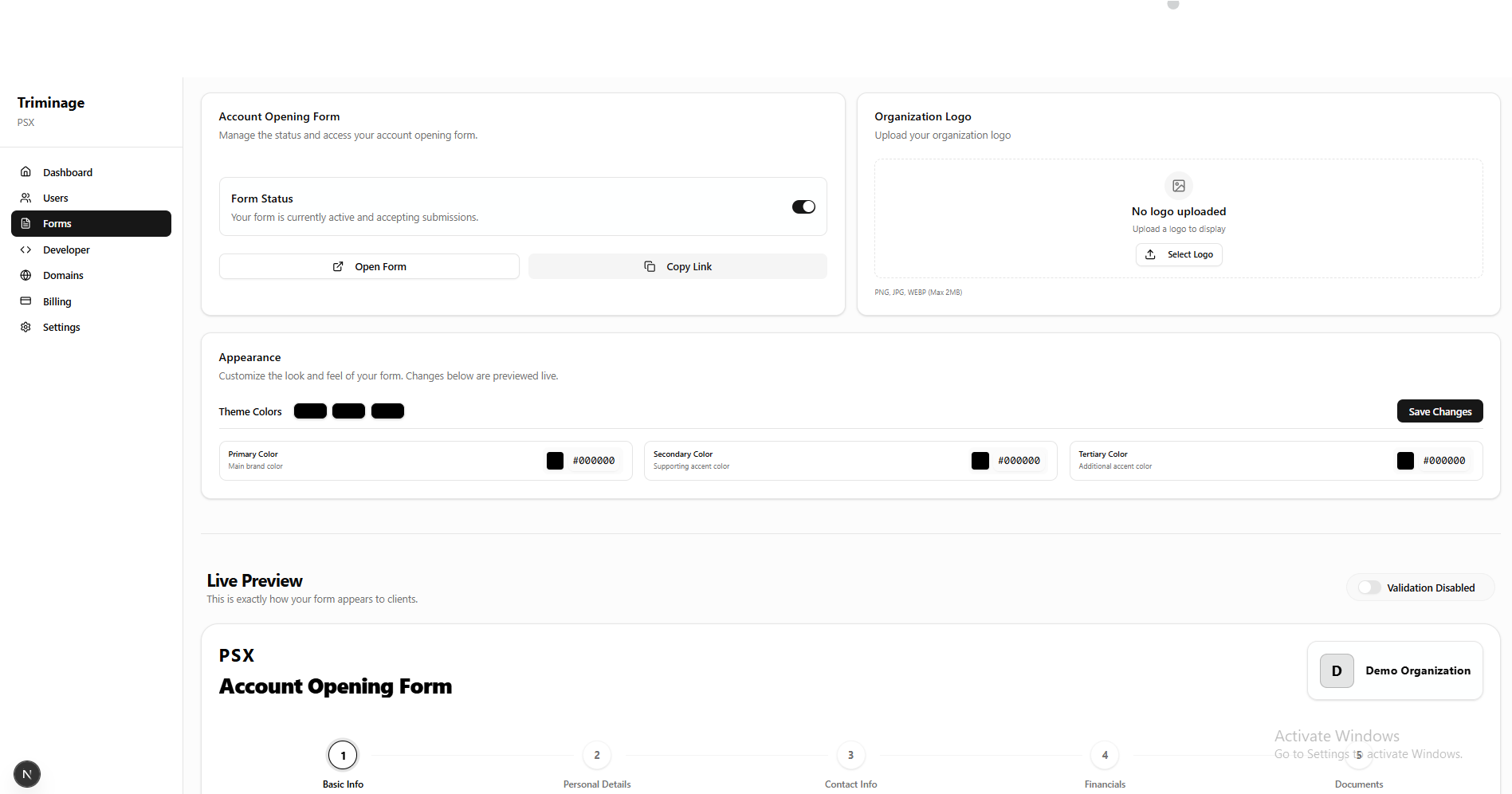
On the Forms page, you will see your account opening form. In the form settings section, locate the "Form Status" toggle switch. This switch controls whether your form is active and accepting submissions or deactivated.
Deactivate the Form and Verify
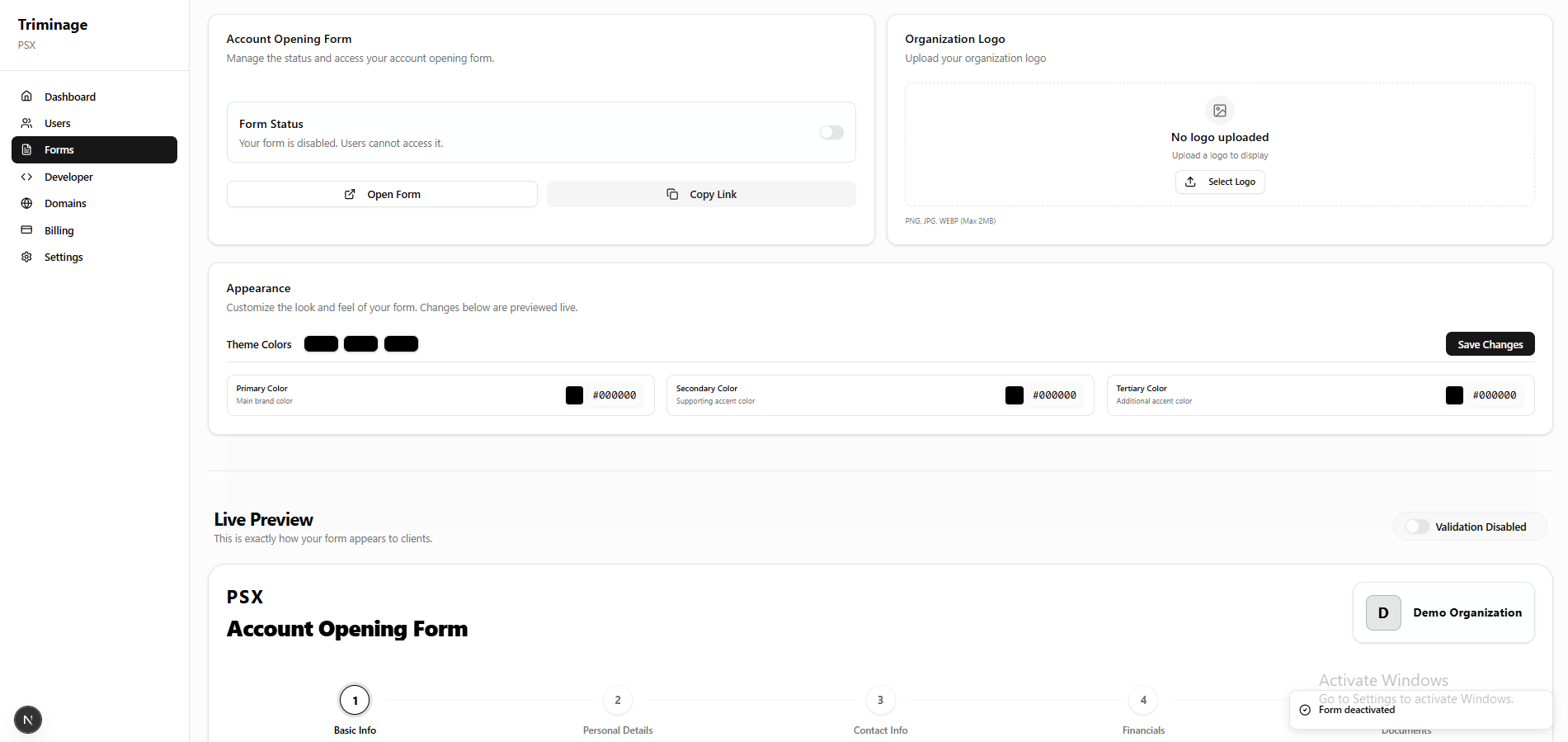
Toggle the status switch from "Active" to "Inactive" or "Deactivated". The system will update the form status immediately. You will see a success notification confirming the deactivation. After deactivation, the form status will show as "Deactivated" and the description will indicate that users cannot access it. The form will no longer accept new submissions until you reactivate it.
Important Note
When you deactivate a form, it will stop accepting new submissions. Existing submissions will remain in your system, but users will not be able to submit new forms until you reactivate it.
Tip
You can reactivate your form at any time by following the same steps and toggling the status back to "Active".