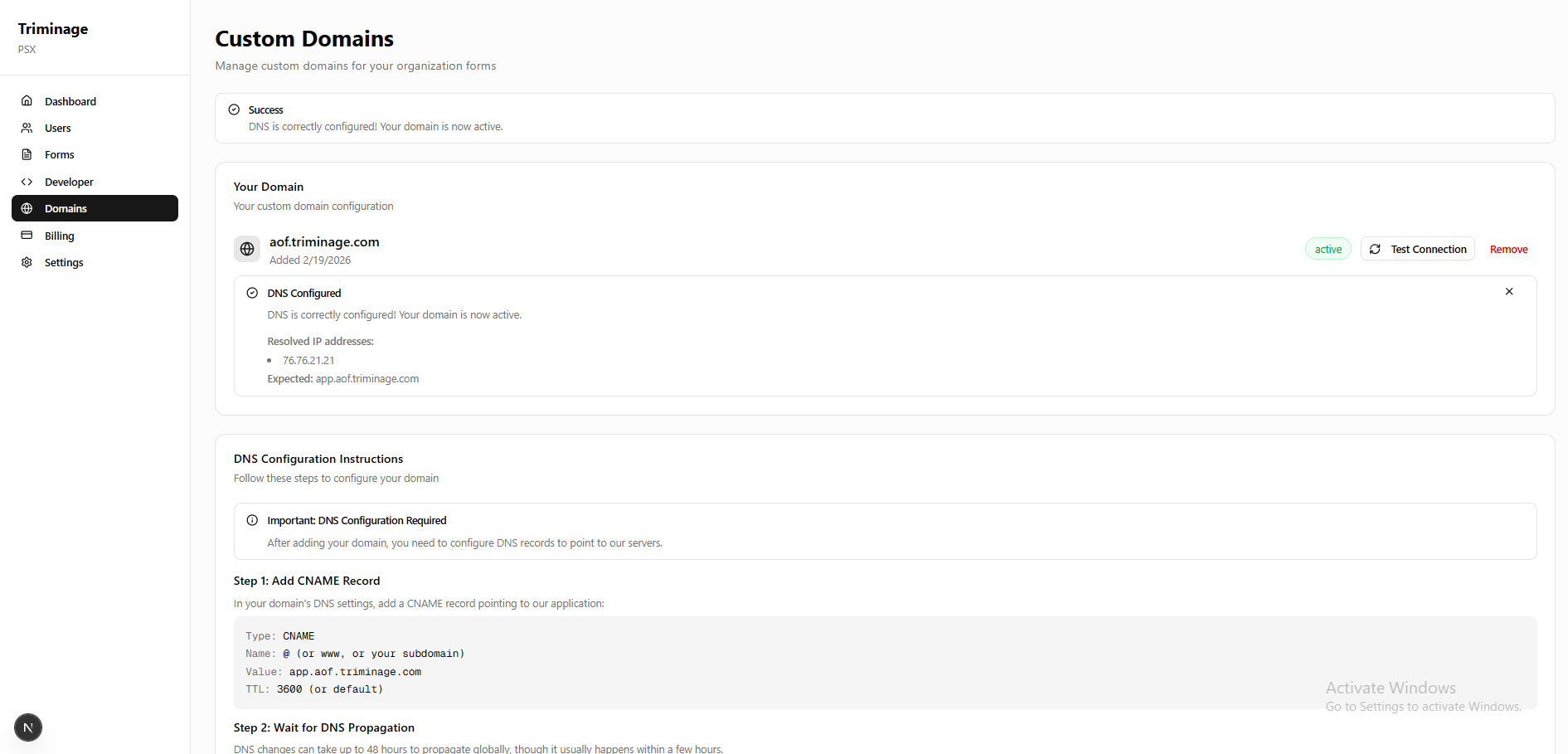
How to Connect Your Domain with Your Form
Connect your custom domain to your Triminage Account Opening Form to provide a branded experience for your clients.
Last updated: 2024
Prerequisites
- An active Triminage account
- Access to your domain registrar's DNS settings
- A domain name that you own
Step-by-Step Instructions
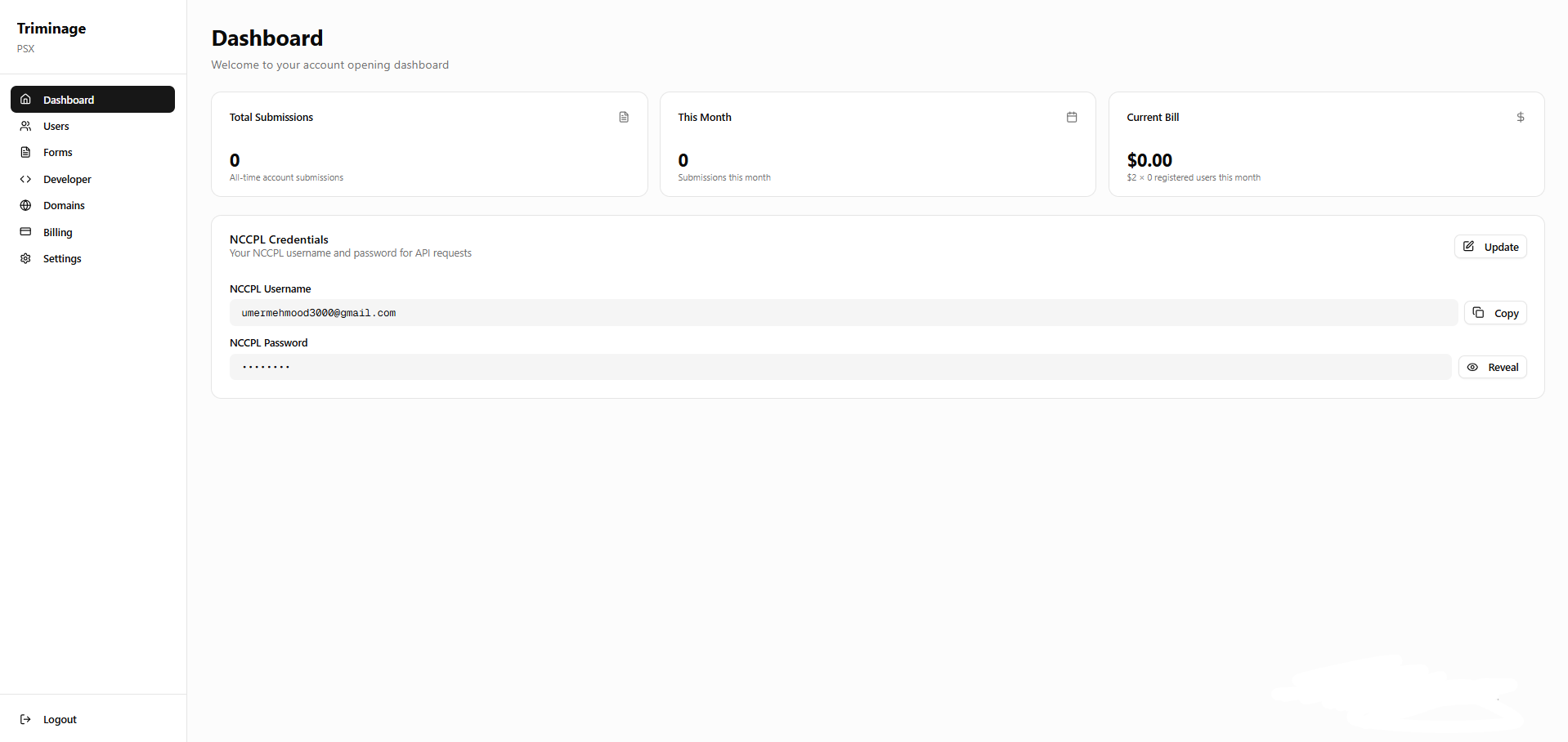
Access Domain Settings
Log in to your dashboard and navigate to the "Domains" section. You can find this in the main navigation menu.
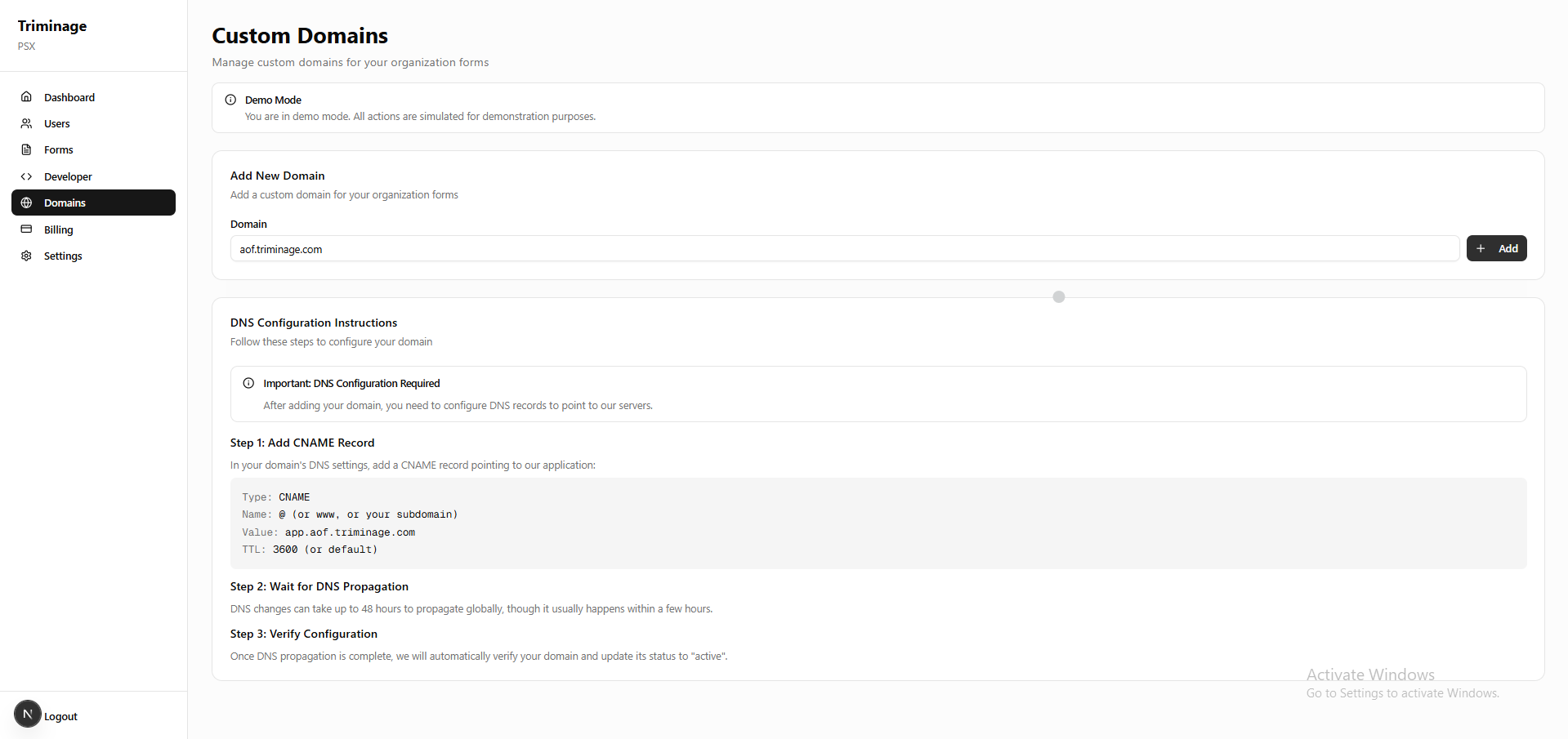
Click Add Domain
In the Domains page, click on the "Add Domain" or "Connect Domain" button to start the connection process.

Enter Your Domain
Enter your domain name (e.g., example.com) in the provided field. Make sure to enter the domain without "www" or "http://".
Configure DNS Records
You will be provided with DNS records that need to be added to your domain's DNS settings. These typically include CNAME or A records.
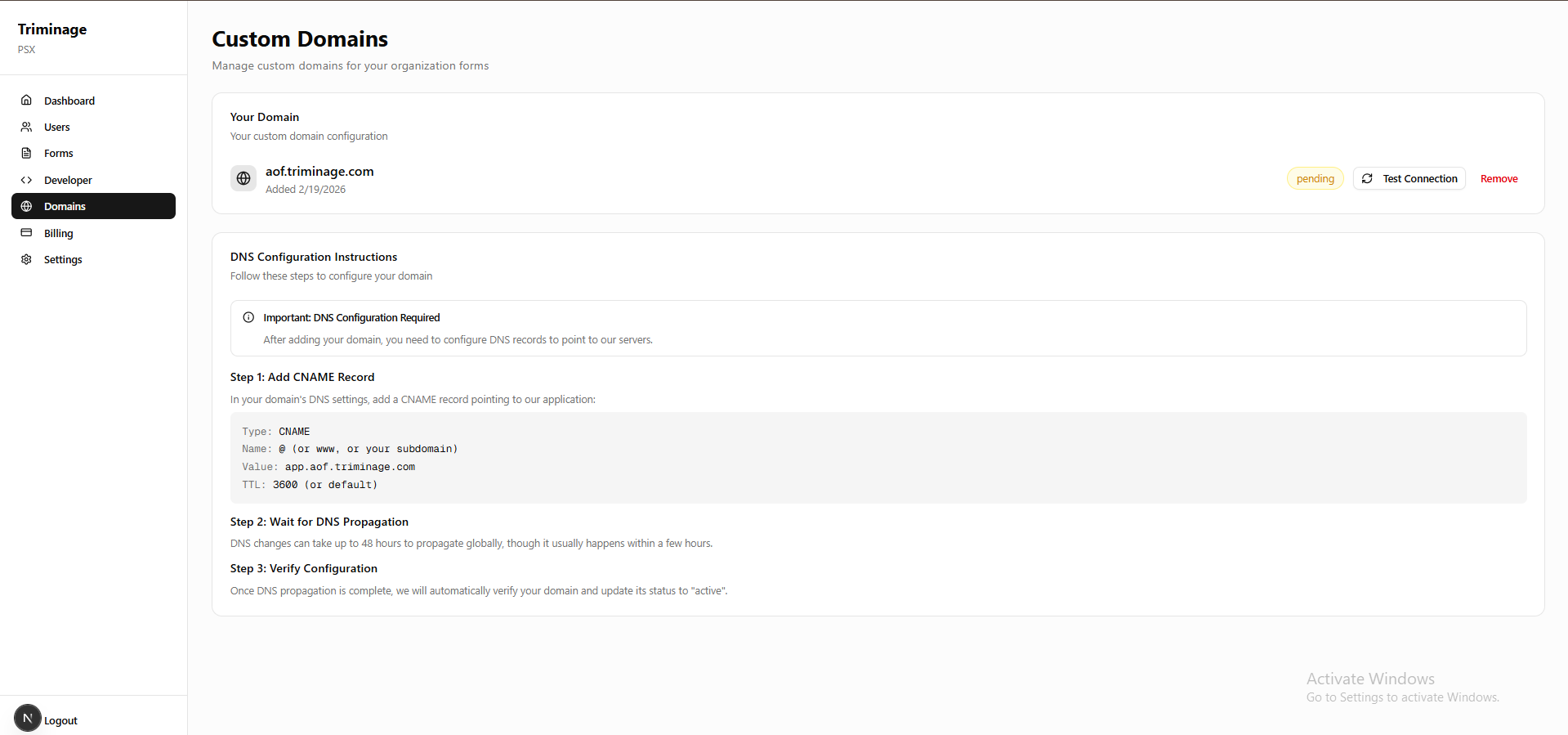
Update DNS at Your Registrar
Log in to your domain registrar (where you purchased your domain) and navigate to DNS settings. Add the provided DNS records exactly as shown.
Verify Connection and Wait for Propagation
Return to the Triminage dashboard and click "Test Connection" to verify that your DNS records are correctly configured. DNS changes can take up to 24-48 hours to propagate globally. Once propagation is complete and verification succeeds, your domain status will change to "Active" and your domain will be fully connected to your form.