How to Disconnect Your Domain
Remove the connection between your custom domain and your Triminage Account Opening Form.
Last updated: 2024
Prerequisites
- An active Triminage account
- A domain that is currently connected
- Access to domain settings
Step-by-Step Instructions
Access Domain Settings
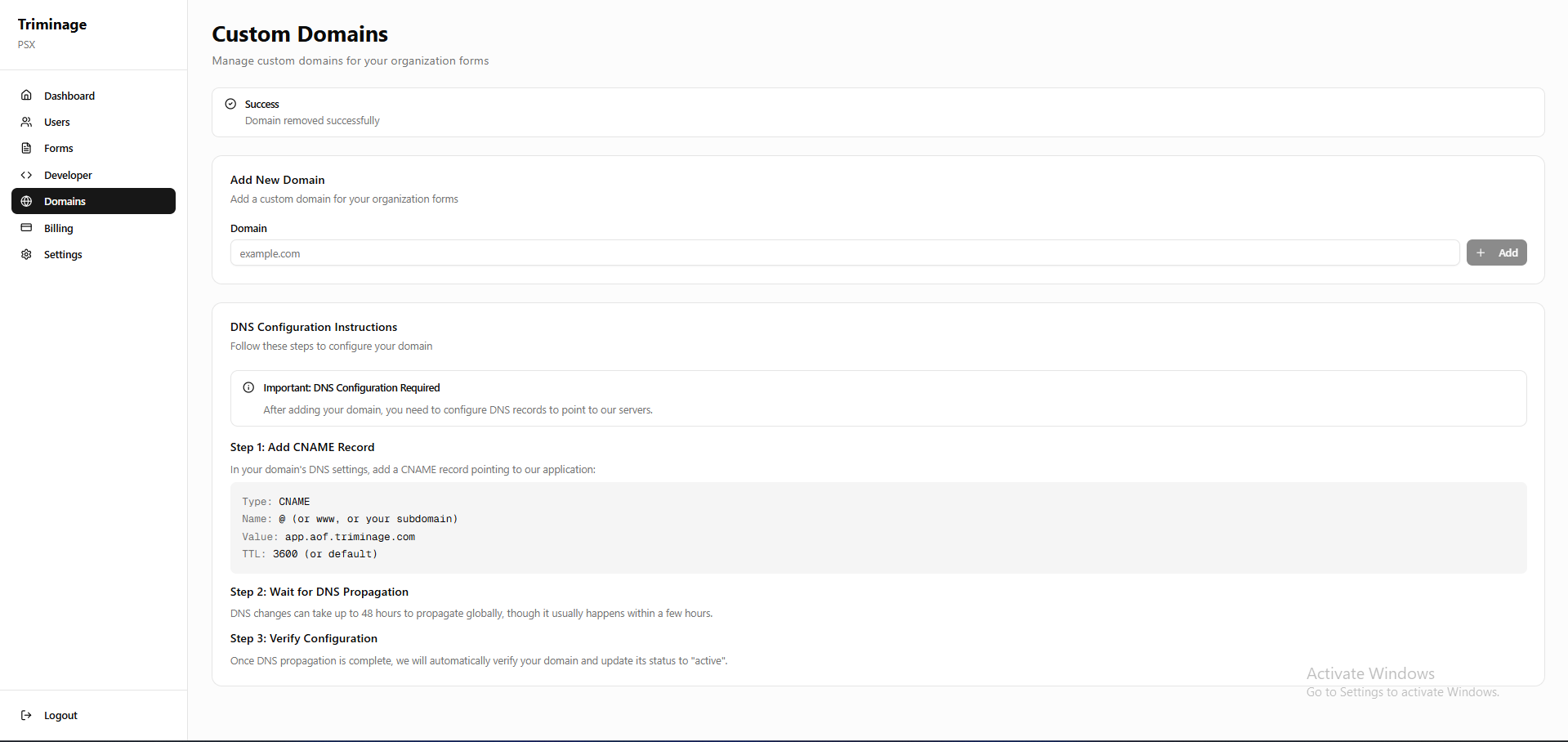
Log in to your dashboard and navigate to the "Domains" section from the main navigation menu.
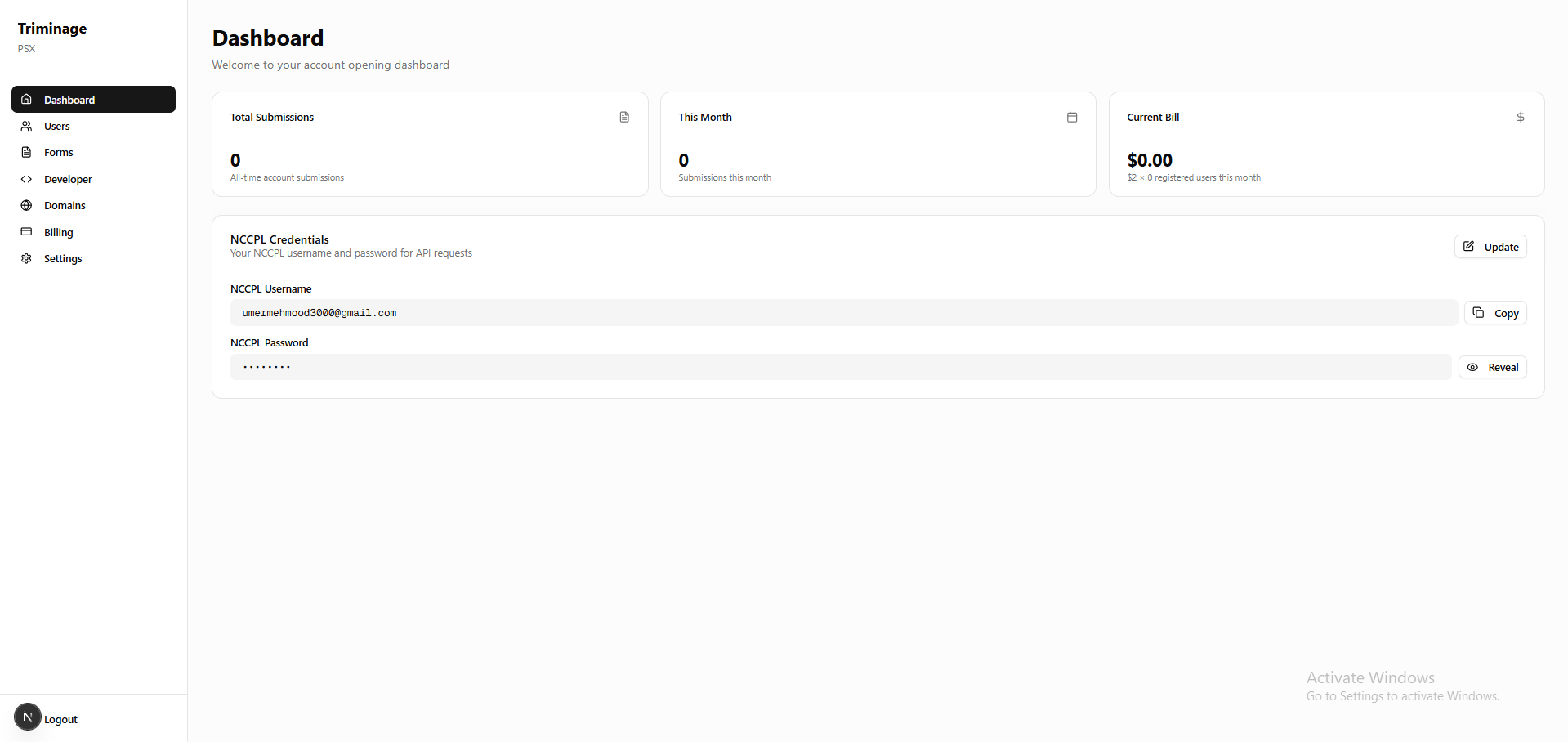
View Connected Domains & Select Domain to Disconnect
You will see a list of all domains connected to your account. Find and click on the domain you want to disconnect. This will show the domain details including its status and available actions.
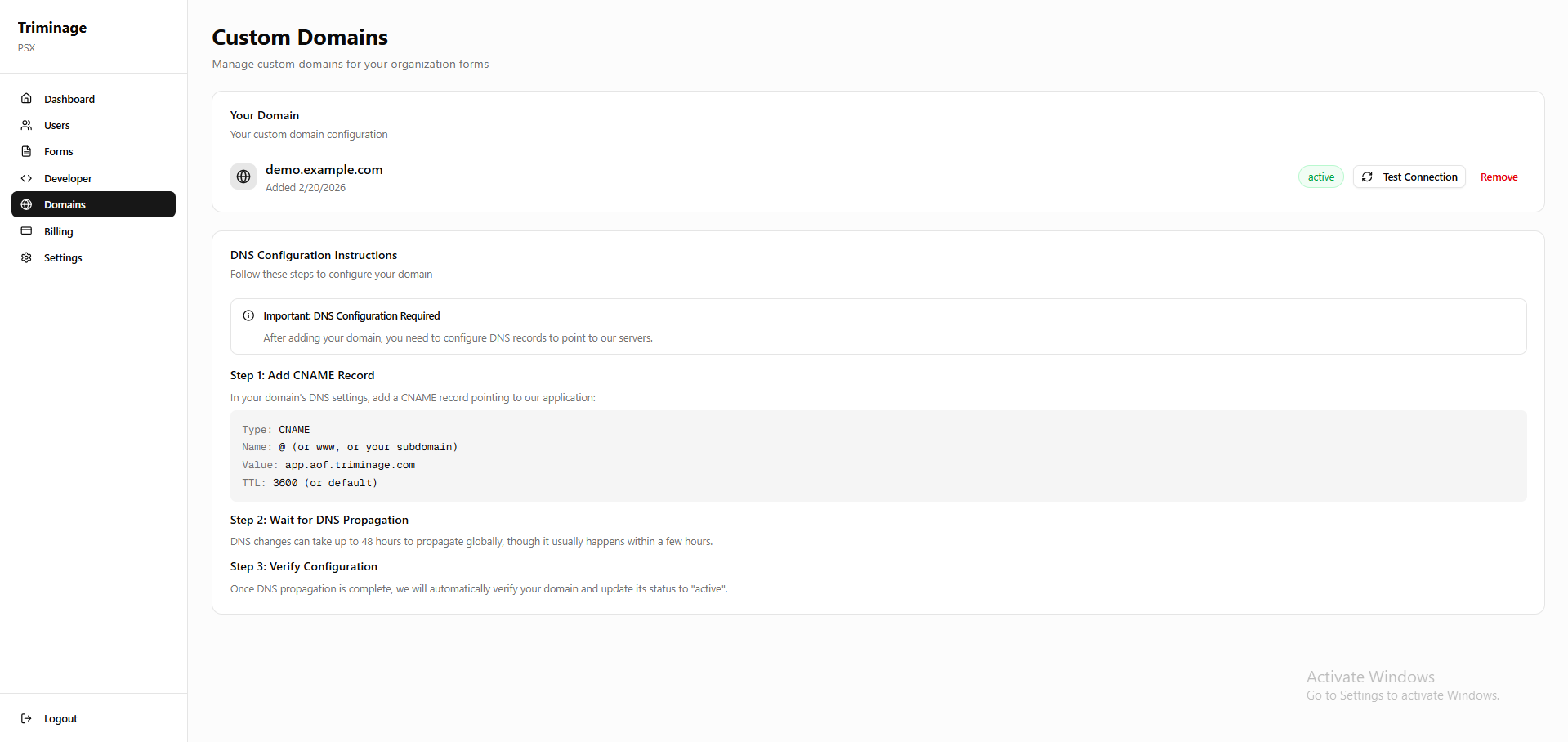
Open Domain Actions & Locate Remove Button
Look for the "Remove" button associated with the domain, which is typically located near the domain status. The Remove button is styled in a destructive/red color to indicate it will disconnect the domain.
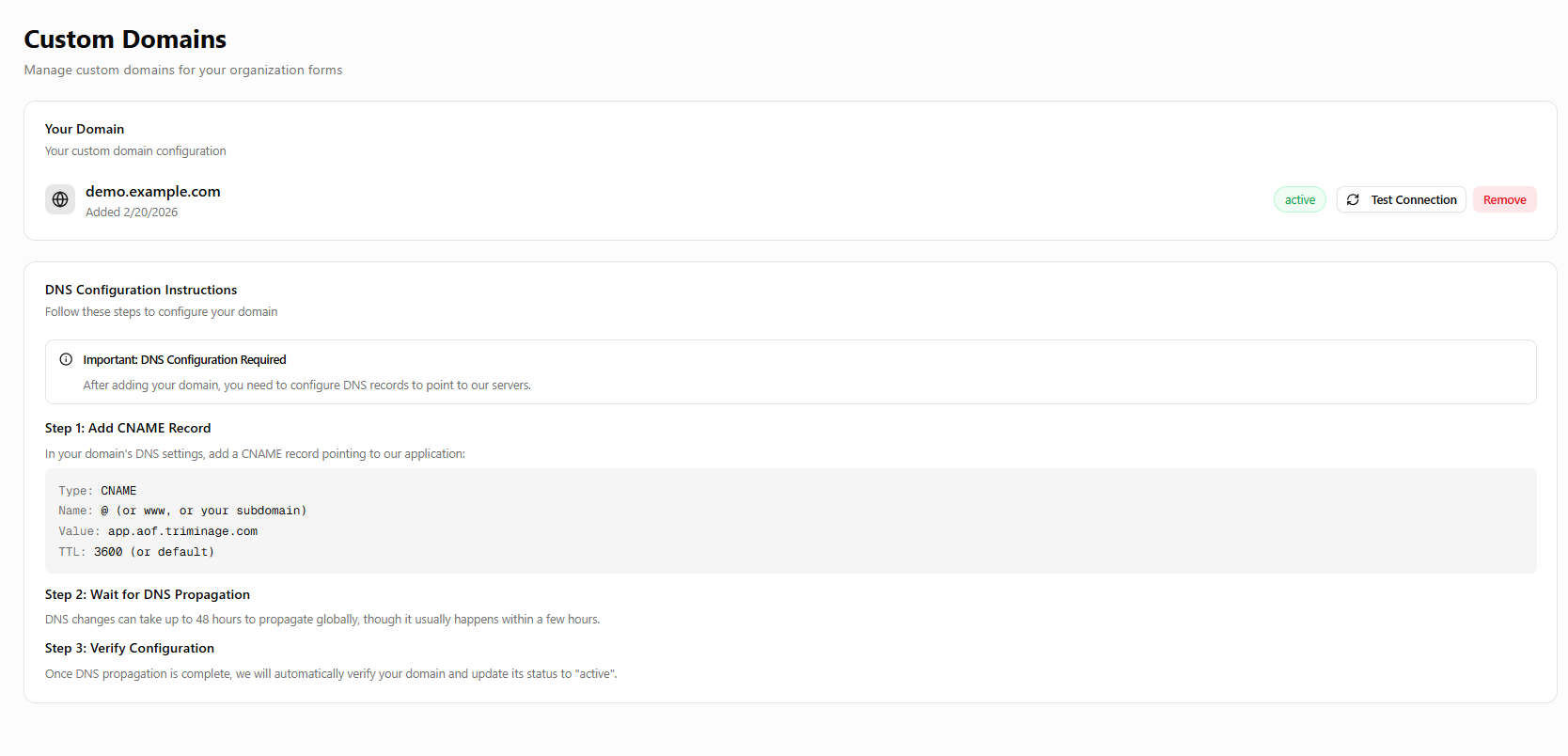
Initiate Disconnection
Click on the "Remove" button. The confirmation dialog will appear asking you to confirm the disconnection.
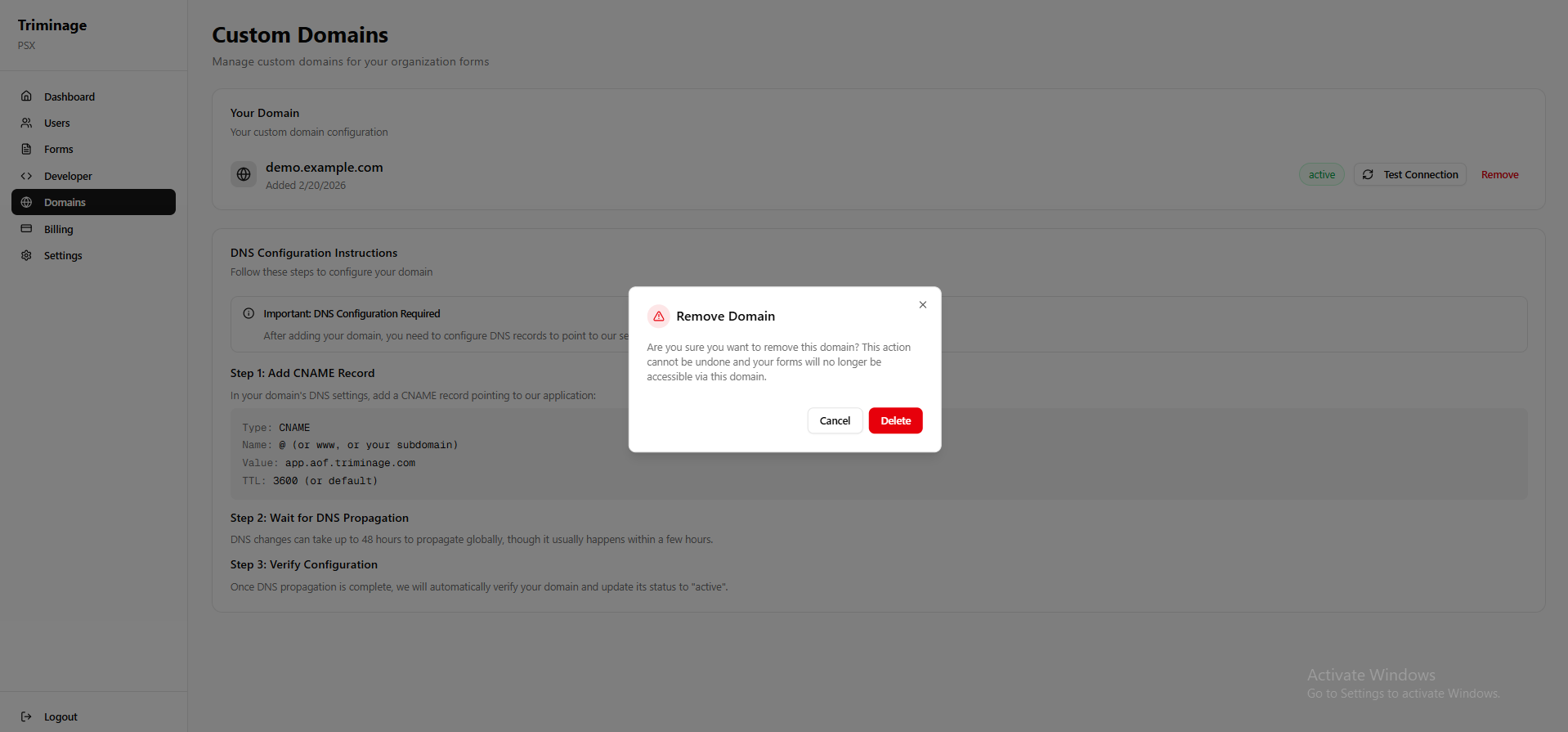
Confirm Disconnection & Verify Disconnection
Read the warning message carefully in the confirmation dialog. Confirm that you want to disconnect the domain by clicking "Delete". After disconnection, the domain will be removed from your list, and your form will no longer be accessible via this domain.
Important Warning
Disconnecting your domain will make your form inaccessible through that domain. Users will not be able to access your form using the disconnected domain. Make sure this is what you want before proceeding.
What Happens After Disconnection
After disconnecting, you can reconnect the same domain later if needed. The DNS records you previously configured may need to be updated or removed depending on your requirements.