How to Style Your Form
Customize the appearance of your account opening form to match your brand with colors, logos, fonts, and more.
Last updated: 2024
Prerequisites
- An active Triminage account
- At least one form created
- Access to form settings
- Your brand assets (logo, color codes) ready
Step-by-Step Instructions
Access Form Settings
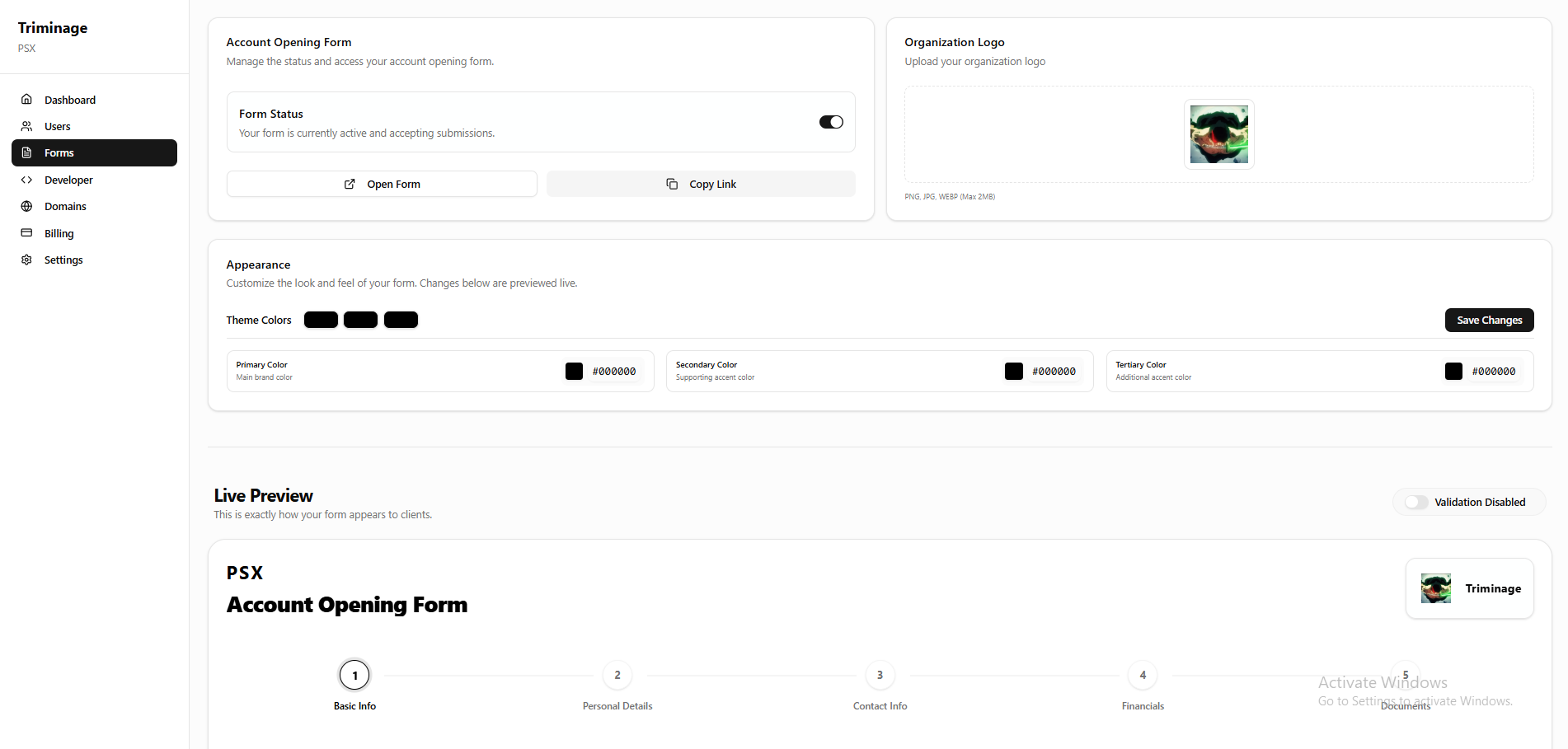
Log in to your dashboard and navigate to the "Forms" section. Select the form you want to style and click on "Settings" or "Customize".
Upload Your Logo
In the logo section, click "Upload Logo" and select your organization's logo file. The logo will appear at the top of your form.

Manage Colors from Appearance Section
Go to the "Appearance" or "Styling" section and set your primary, secondary, and accent colors to match your brand identity.

Save and Preview Changes
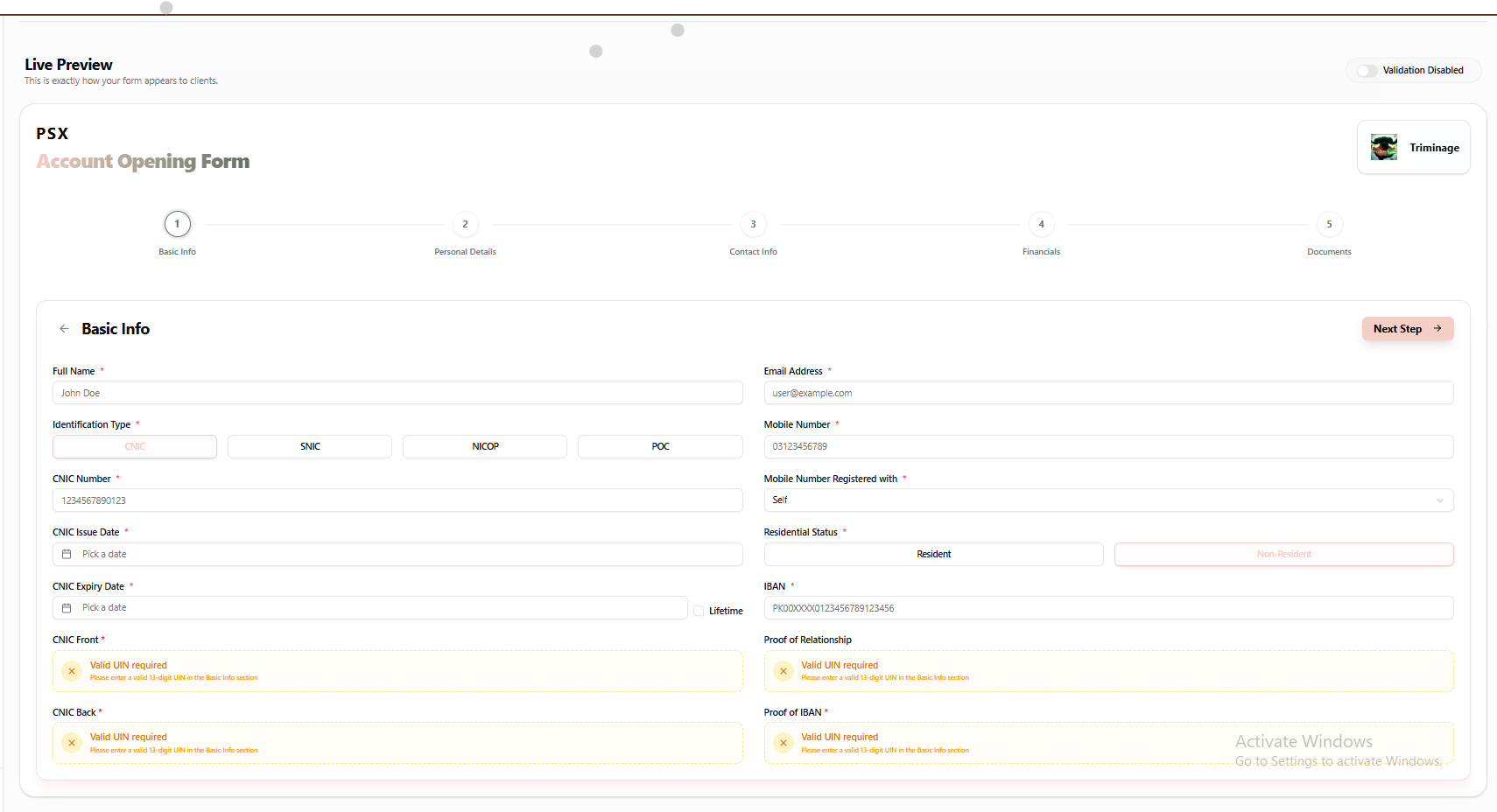
Click "Save" or "Apply" to save your changes, and use the "Preview" button to ensure your form reflects the updated styling.
Branding Tips
Use your brand colors consistently across all form elements. Ensure your logo is high-quality and properly sized. Test your form on different devices to ensure it looks good on mobile and desktop.
Color Accessibility
Make sure your color choices provide sufficient contrast for readability. Text should be easily readable against background colors to ensure accessibility for all users.