Form is Not Loading
Troubleshoot and fix issues when your account opening form fails to load or displays errors.
Last updated: 2024
Prerequisites
- Access to Triminage dashboard
- Access to the form URL
- Basic knowledge of browser developer tools
Step-by-Step Instructions
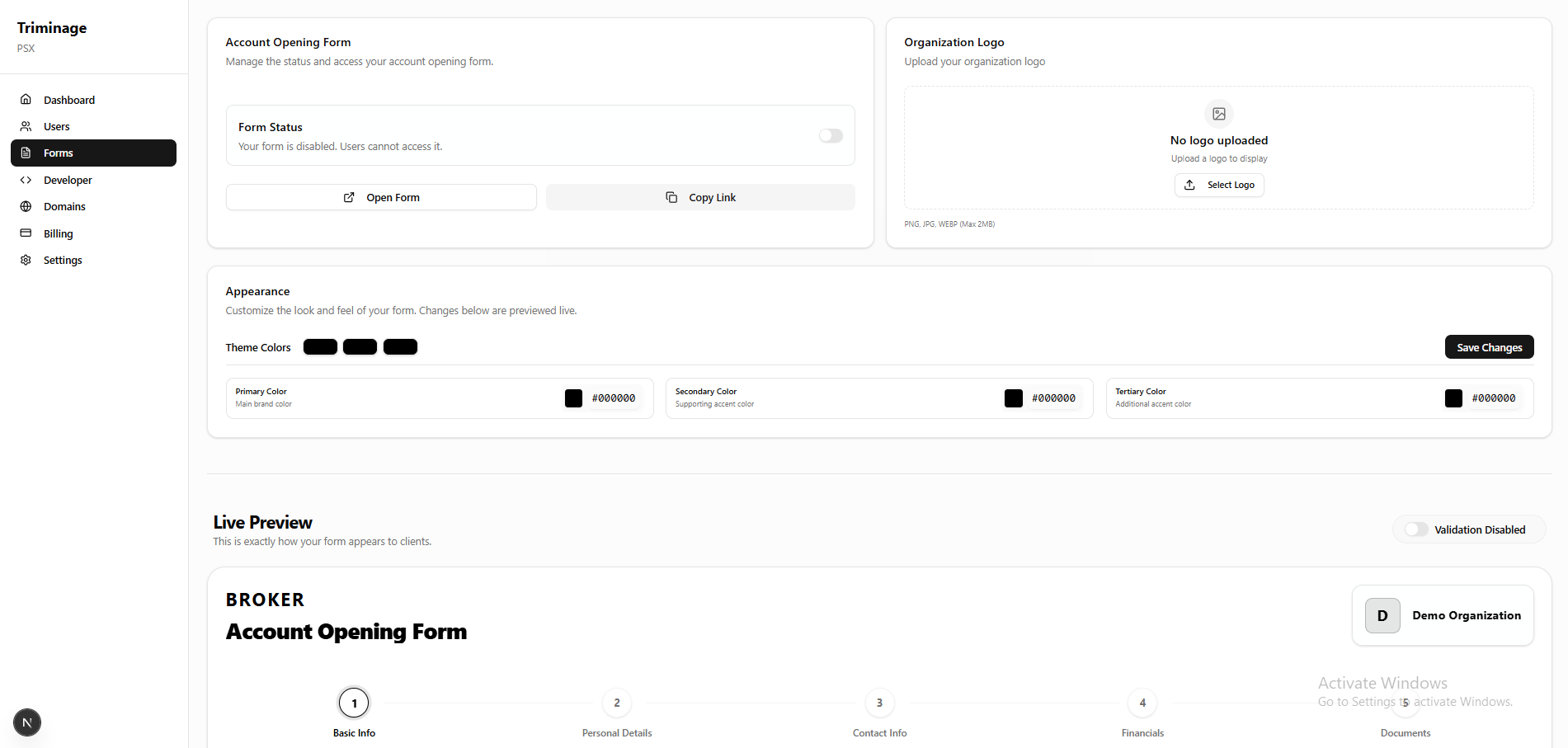
Check Form Status
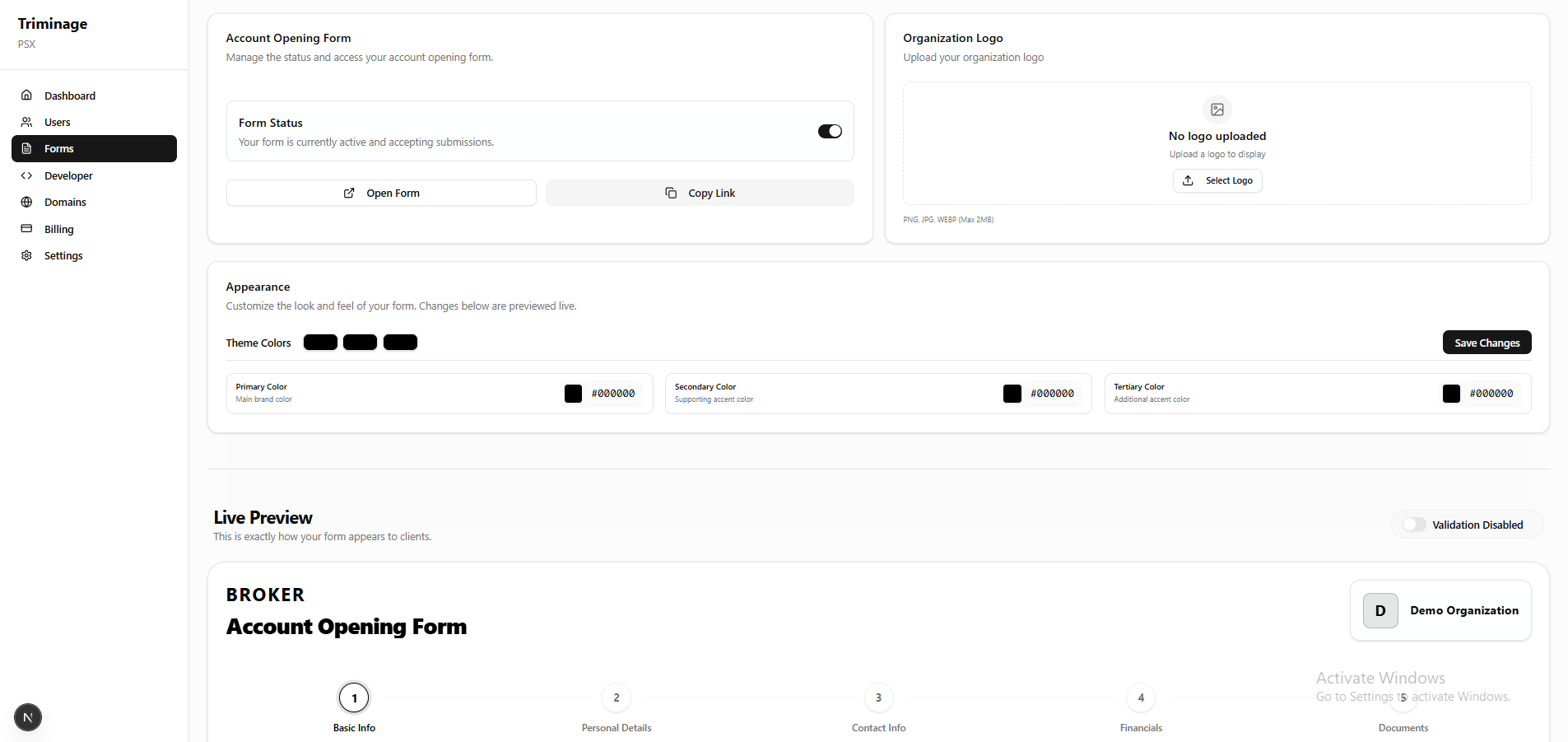
Log in to your dashboard and navigate to the "Forms" section. Verify that your form is set to "Active" status. Deactivated forms will not load.
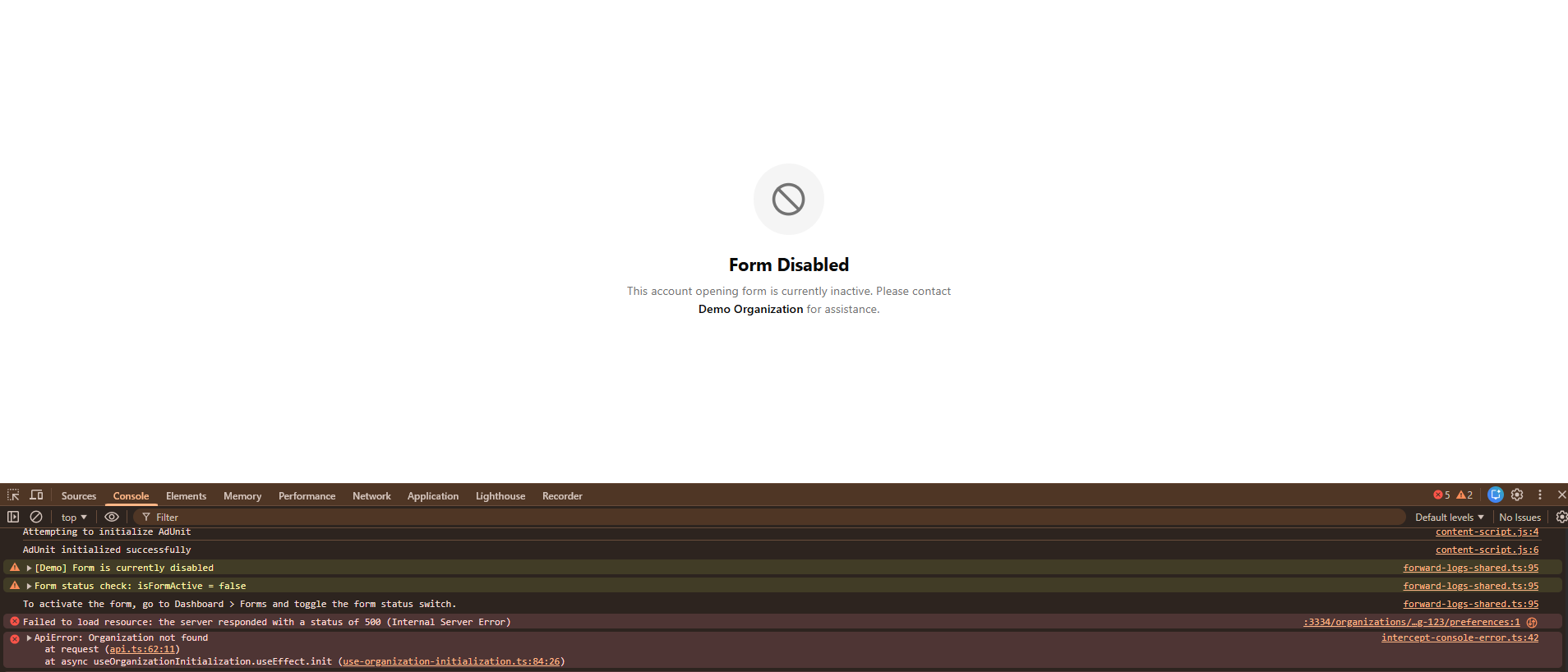
Verify Browser Console
Open your browser's developer console (F12 or right-click > Inspect) and check for any JavaScript errors. These errors can indicate what's preventing the form from loading.
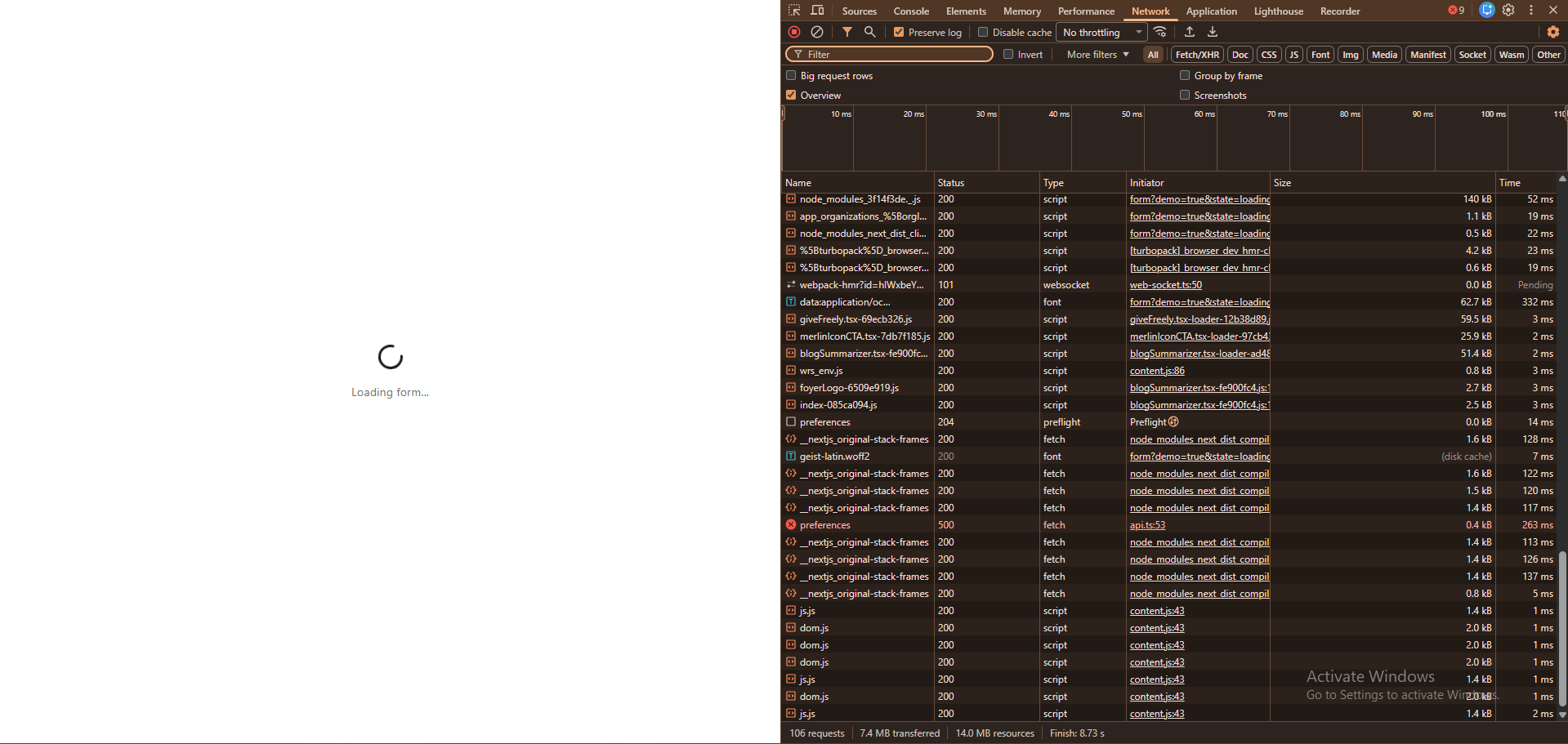
Check Network Connection
In the browser developer tools, go to the Network tab and reload the page. Check if any resources are failing to load (shown in red).
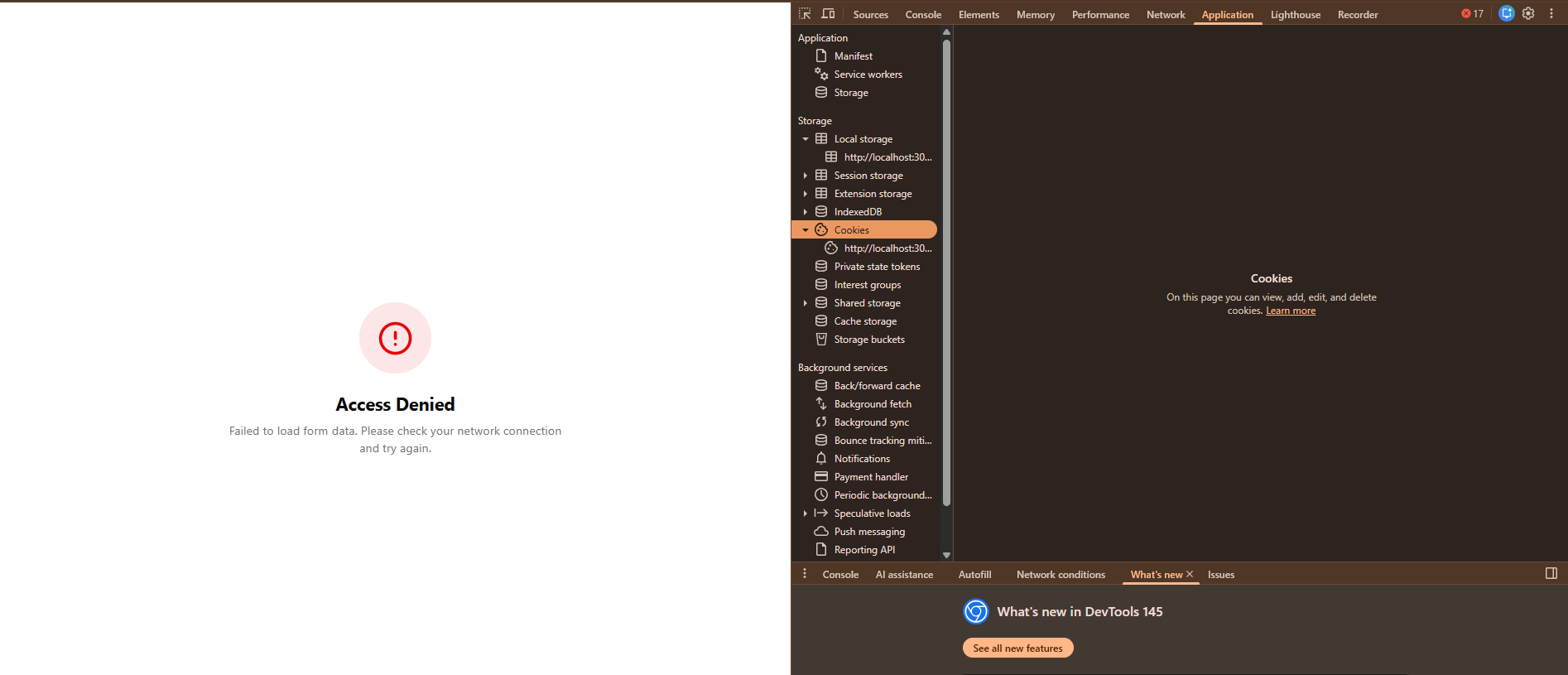
Clear Browser Cache
Clear your browser cache and cookies for the form URL. Cached files might be causing conflicts. Try using an incognito/private window to test.
Test in Different Browser
Try accessing the form in a different web browser to rule out browser-specific issues. Test in Chrome, Firefox, Safari, or Edge.
Check Form Configuration
Review your form settings in the dashboard. Ensure all required fields are properly configured and there are no configuration errors.
Verify Domain Connection
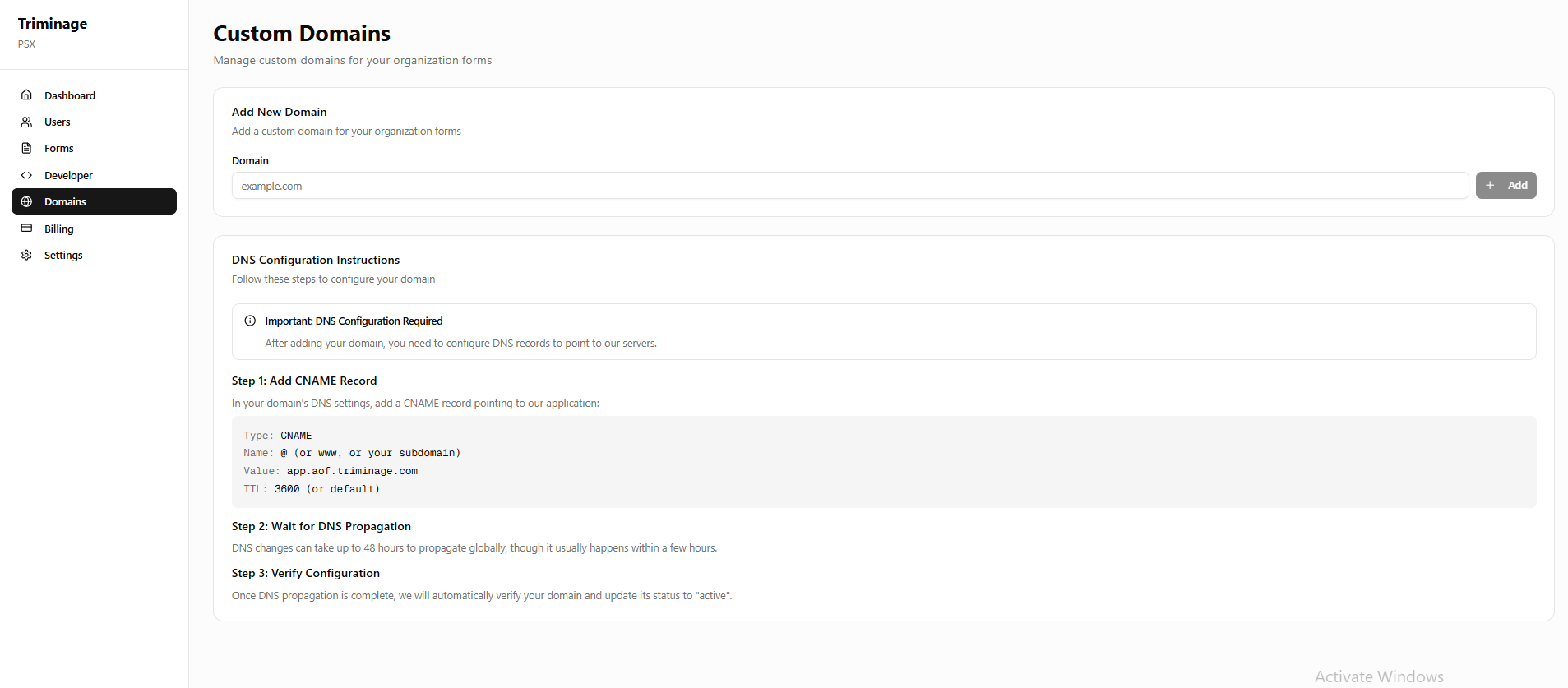
If using a custom domain, verify that the domain is properly connected. Check the Domains section in your dashboard.
Check Subscription Status
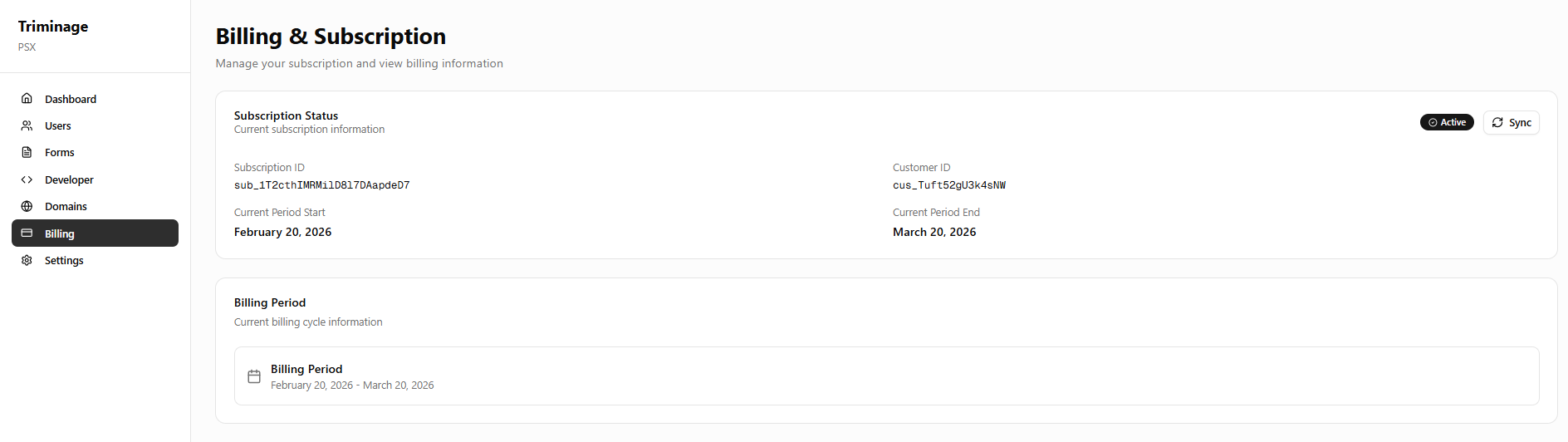
Verify that your subscription is active and in good standing. Expired or suspended subscriptions can prevent forms from loading.
Common Causes
Forms may fail to load due to: inactive form status, browser cache issues, JavaScript errors, network problems, expired subscriptions, or domain connection issues.
Quick Fixes
Try these quick fixes first: refresh the page (Ctrl+F5 or Cmd+Shift+R for hard refresh), clear browser cache, test in incognito mode, or try a different browser.
Error Messages
If you see specific error messages, note them down. Common errors include "Form not found", "Access denied", or JavaScript errors. These can help identify the specific issue.