Form is Not Visible
Troubleshoot and fix visibility issues when your account opening form is not displaying on your website.
Last updated: 2024
Prerequisites
- Access to Triminage dashboard
- Access to your website code (if embedded)
- Basic knowledge of HTML/CSS
Step-by-Step Instructions
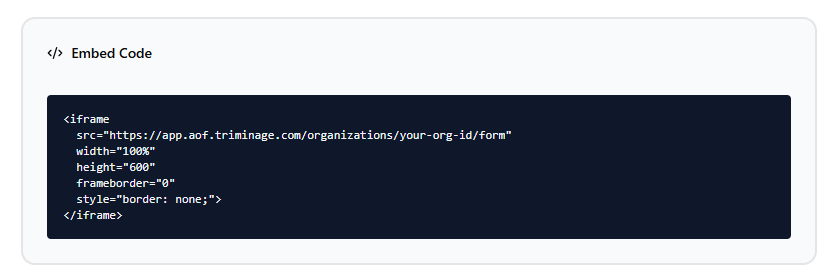
Check Form Embed Code
If you've embedded the form on your website, verify that the embed code is correctly placed and hasn't been modified. Check for any syntax errors in the code.
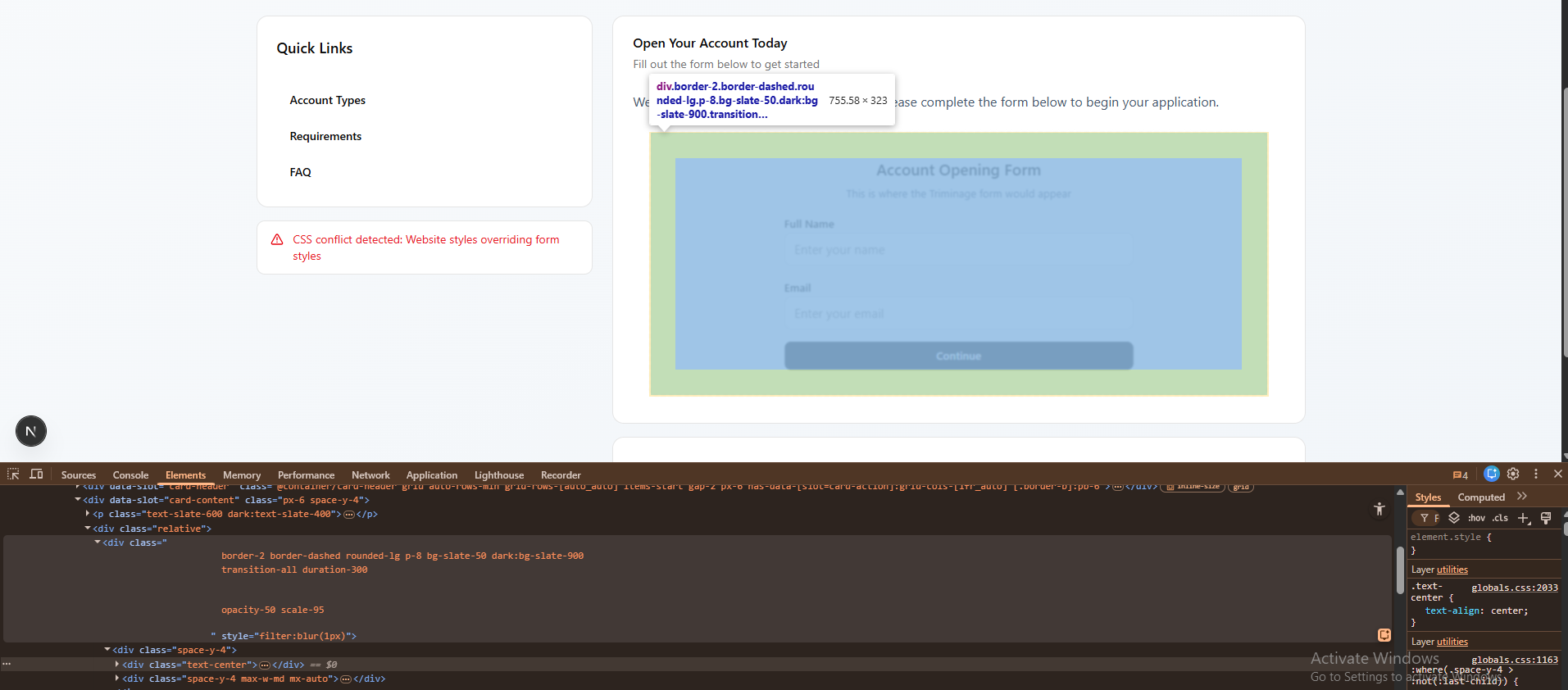
Inspect CSS Conflicts
Open browser developer tools (F12) and inspect the form area. Check if CSS from your website is hiding the form or causing display issues.
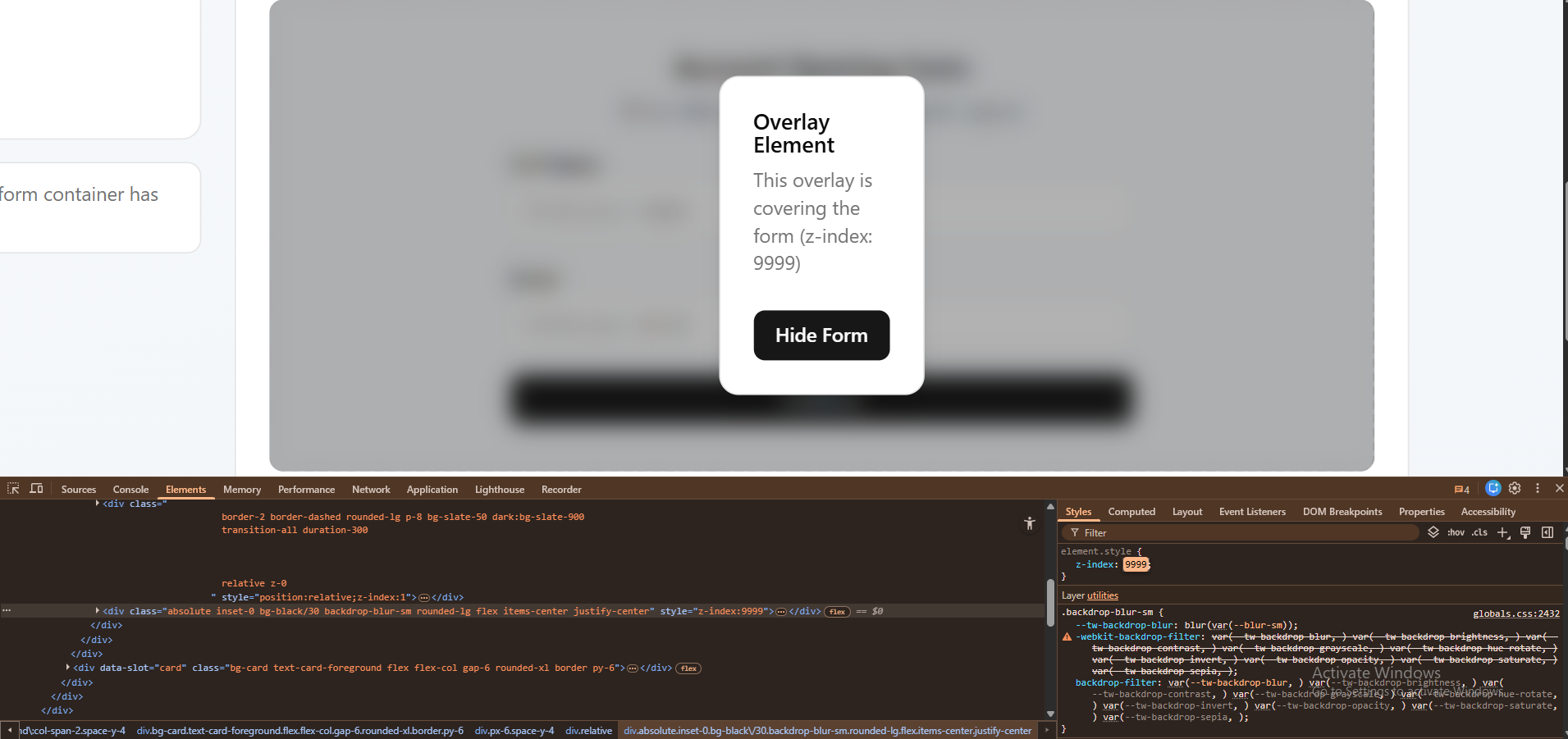
Check Z-Index Issues
Verify that other elements on your page aren't covering the form. Check z-index values and ensure the form container has proper positioning.
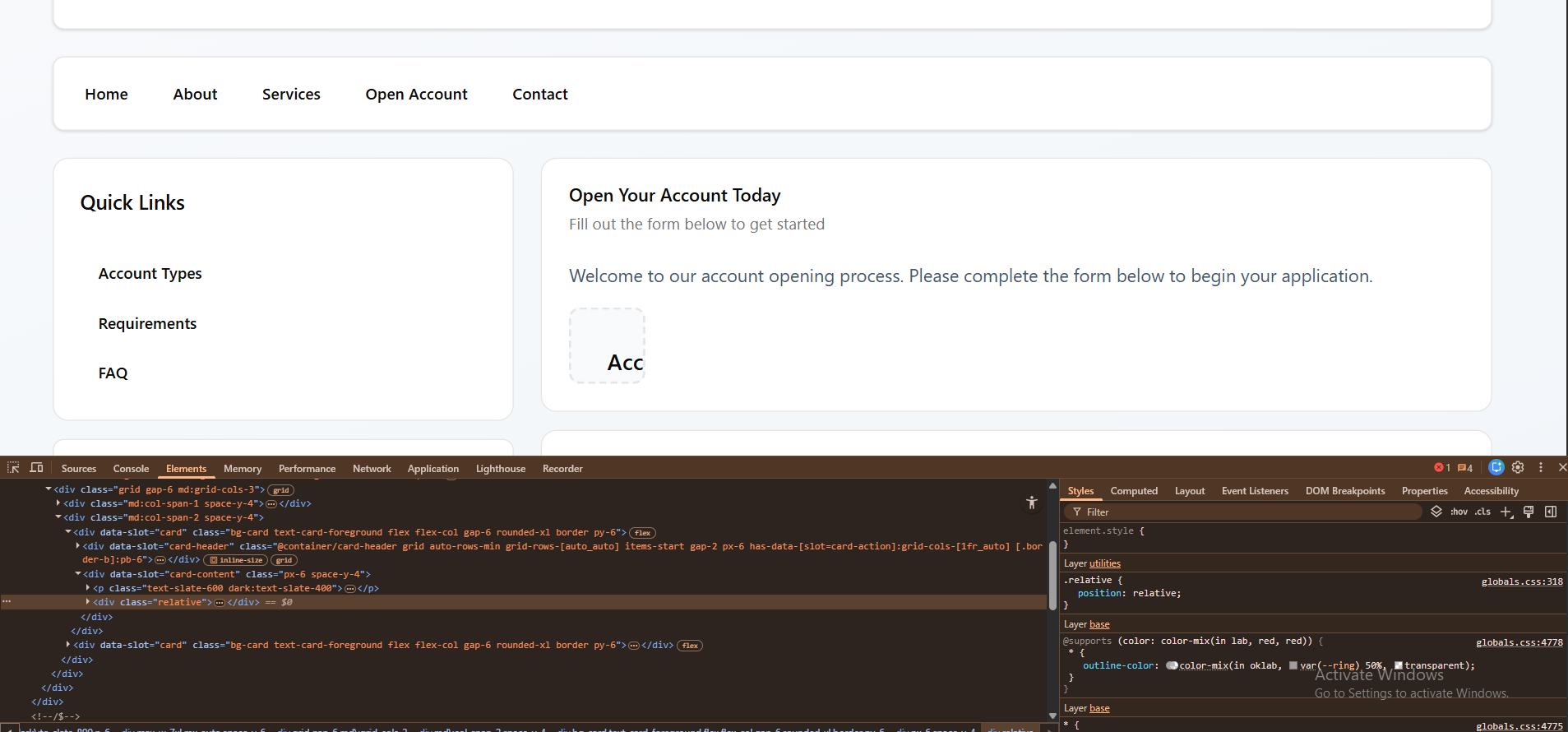
Verify Form Container
Ensure the container element where the form is embedded has sufficient width and height. The form might be loading but hidden due to container size.
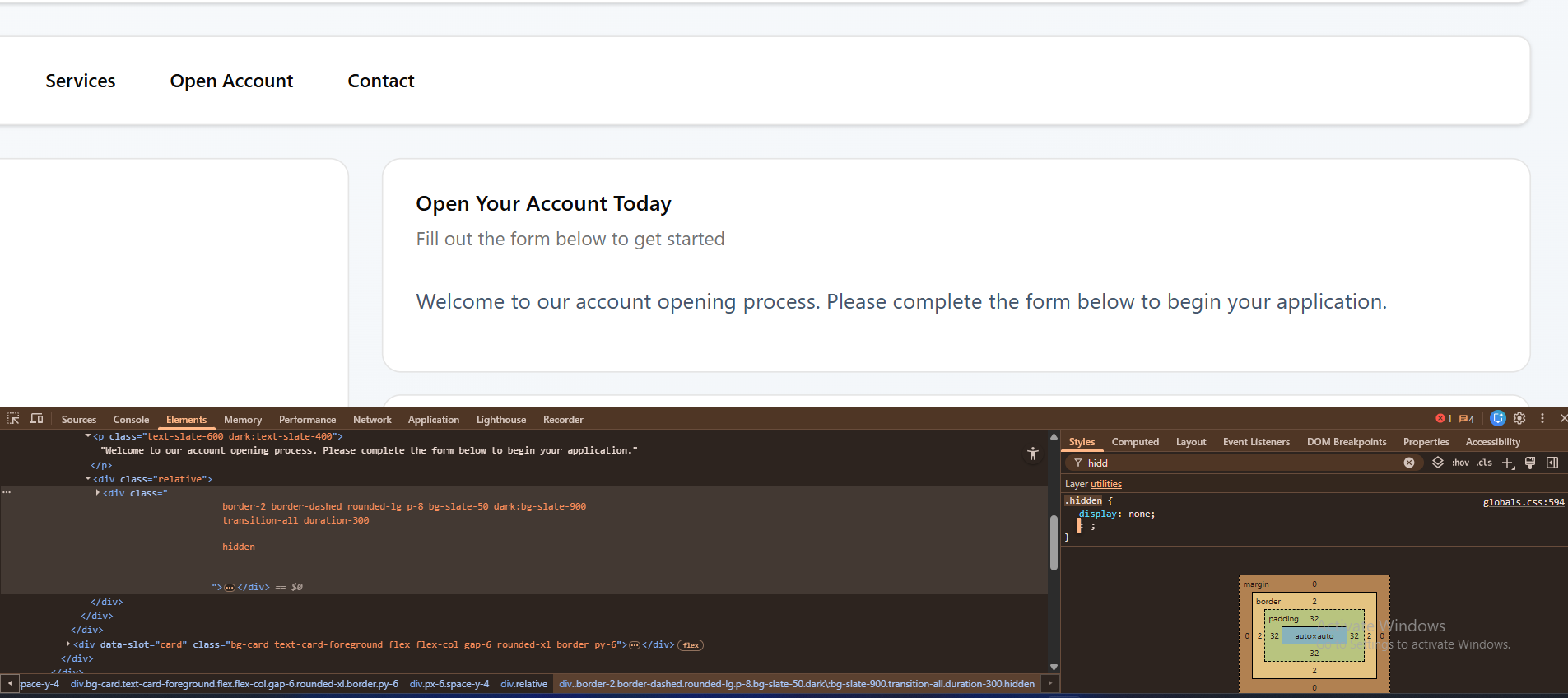
Check Display Properties
Inspect the form element's CSS properties. Ensure it doesn't have "display: none" or "visibility: hidden" applied by your website's CSS.
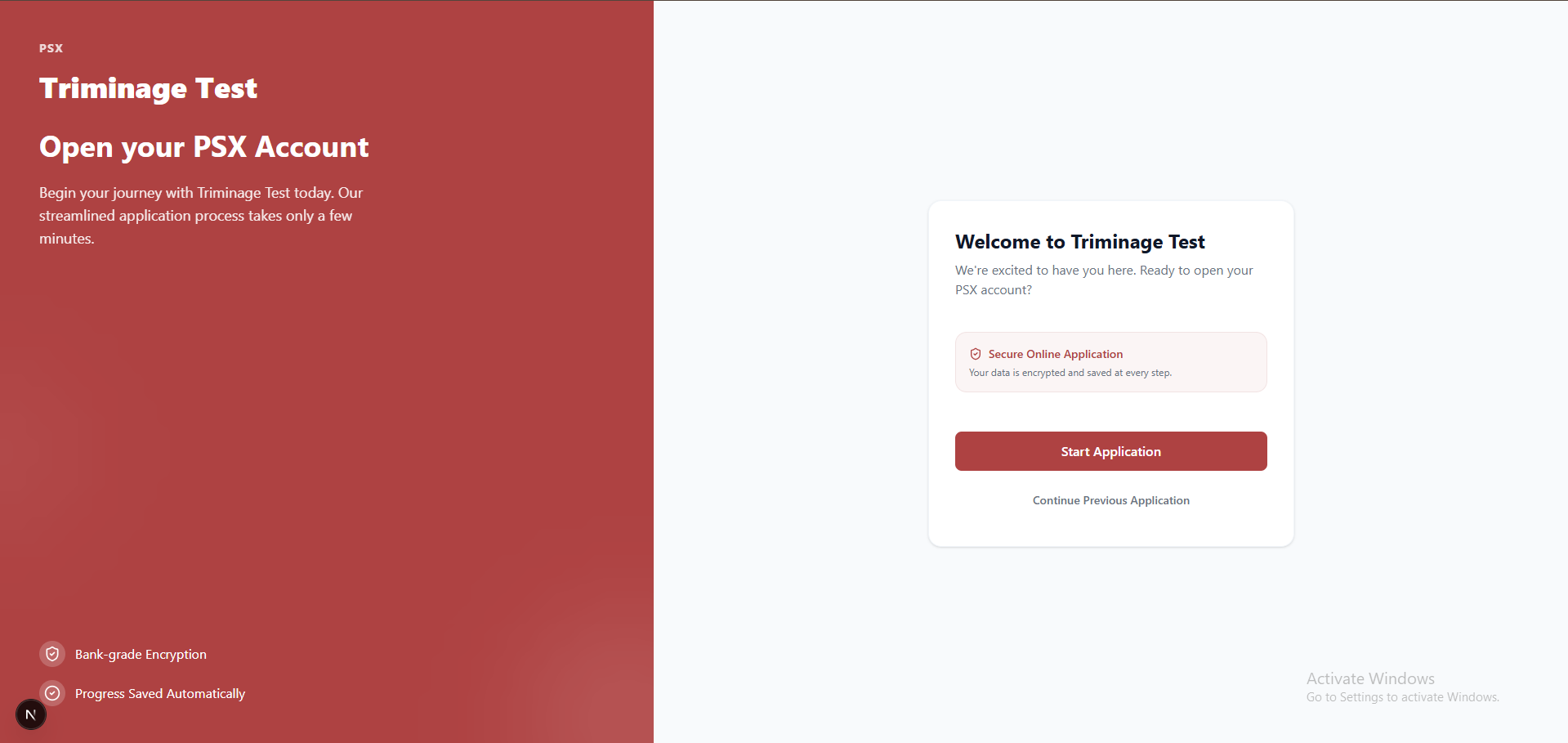
Test Direct Form URL
Try accessing the form directly using its Triminage URL (not embedded). If it works directly, the issue is with the embedding or your website's CSS.
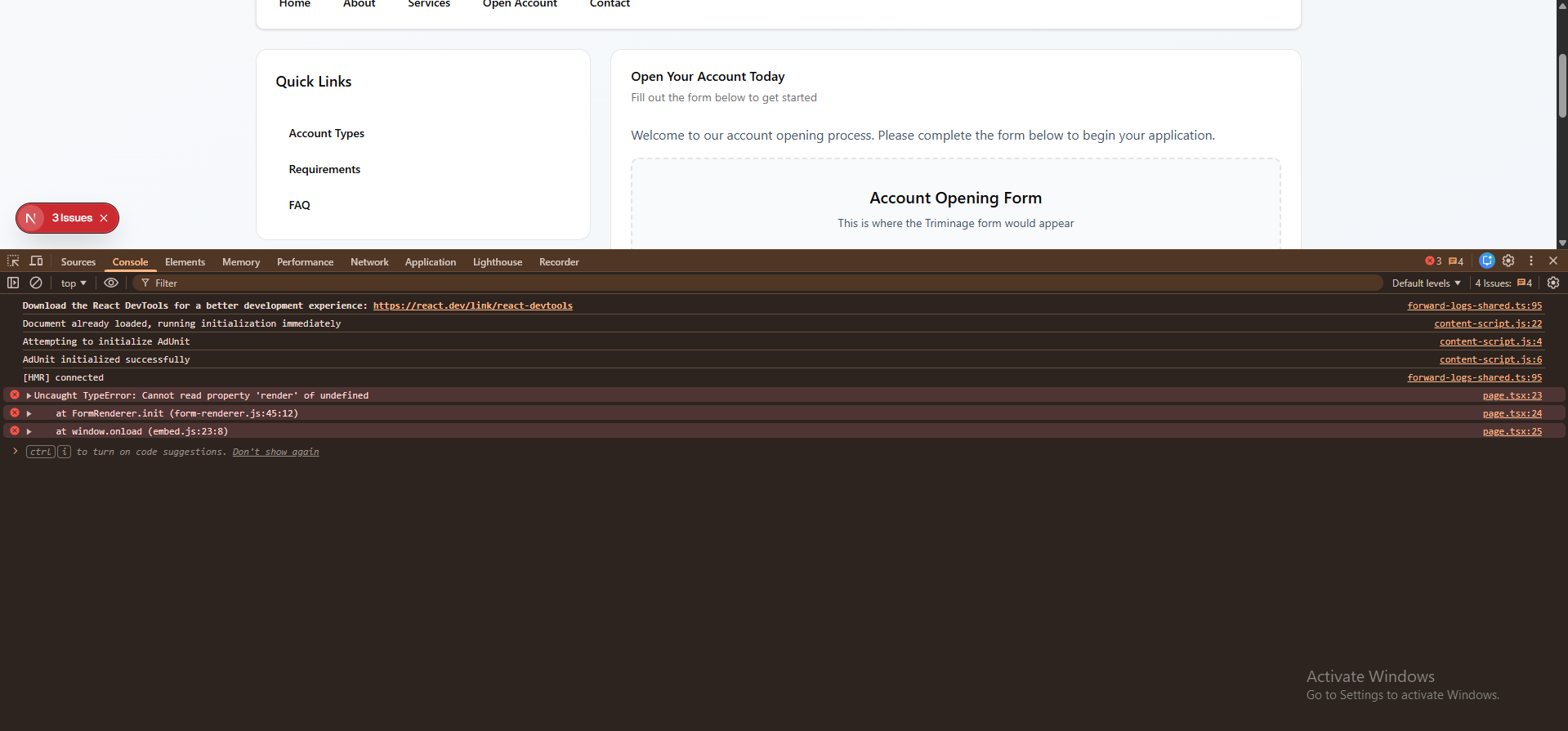
Check JavaScript Errors
Open the browser console and check for JavaScript errors that might prevent the form from rendering. Fix any errors related to the form.
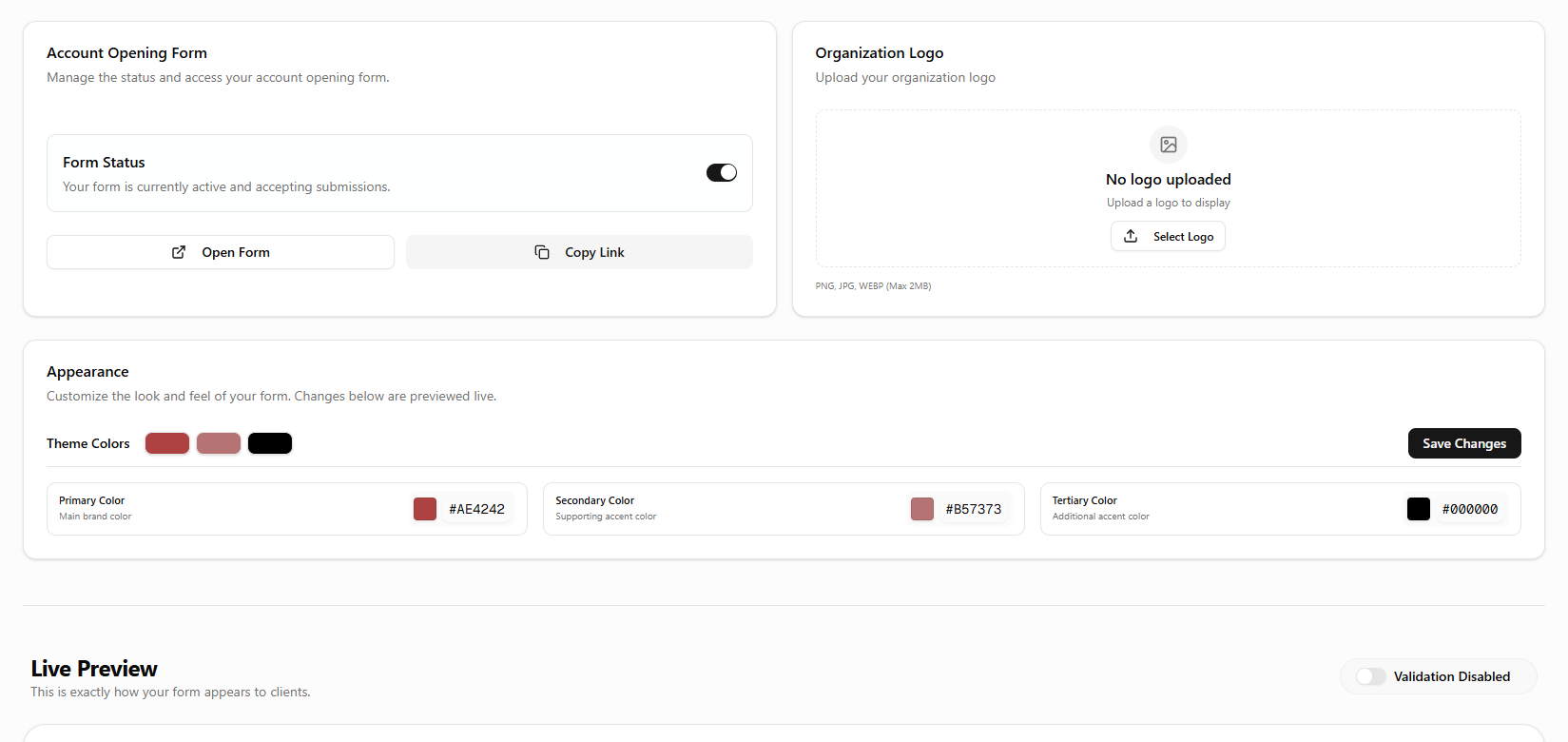
Verify Form Status
In your Triminage dashboard, confirm that the form is active and published. Inactive or draft forms may not be visible.
Common Causes
Forms may not be visible due to: CSS conflicts with your website, hidden display properties, z-index issues, container size problems, or JavaScript errors preventing rendering.
Quick Check
First, try accessing the form directly using its Triminage URL. If it works there, the issue is likely with how it's embedded on your website or CSS conflicts.
CSS Isolation
If you're experiencing CSS conflicts, consider using an iframe to embed the form, which isolates the form's styles from your website's CSS. Contact support for iframe embedding options.